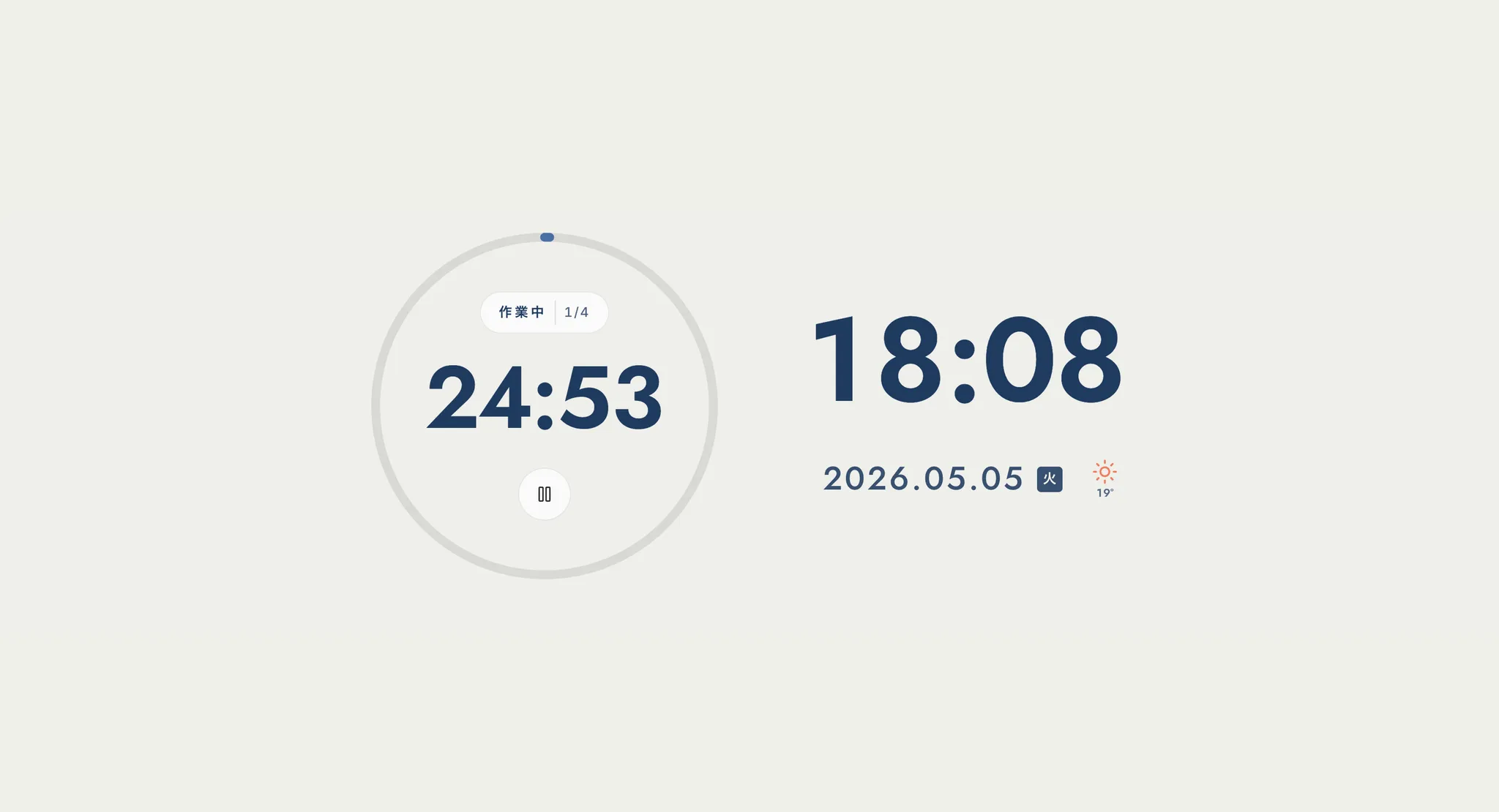
Pomodoro timer
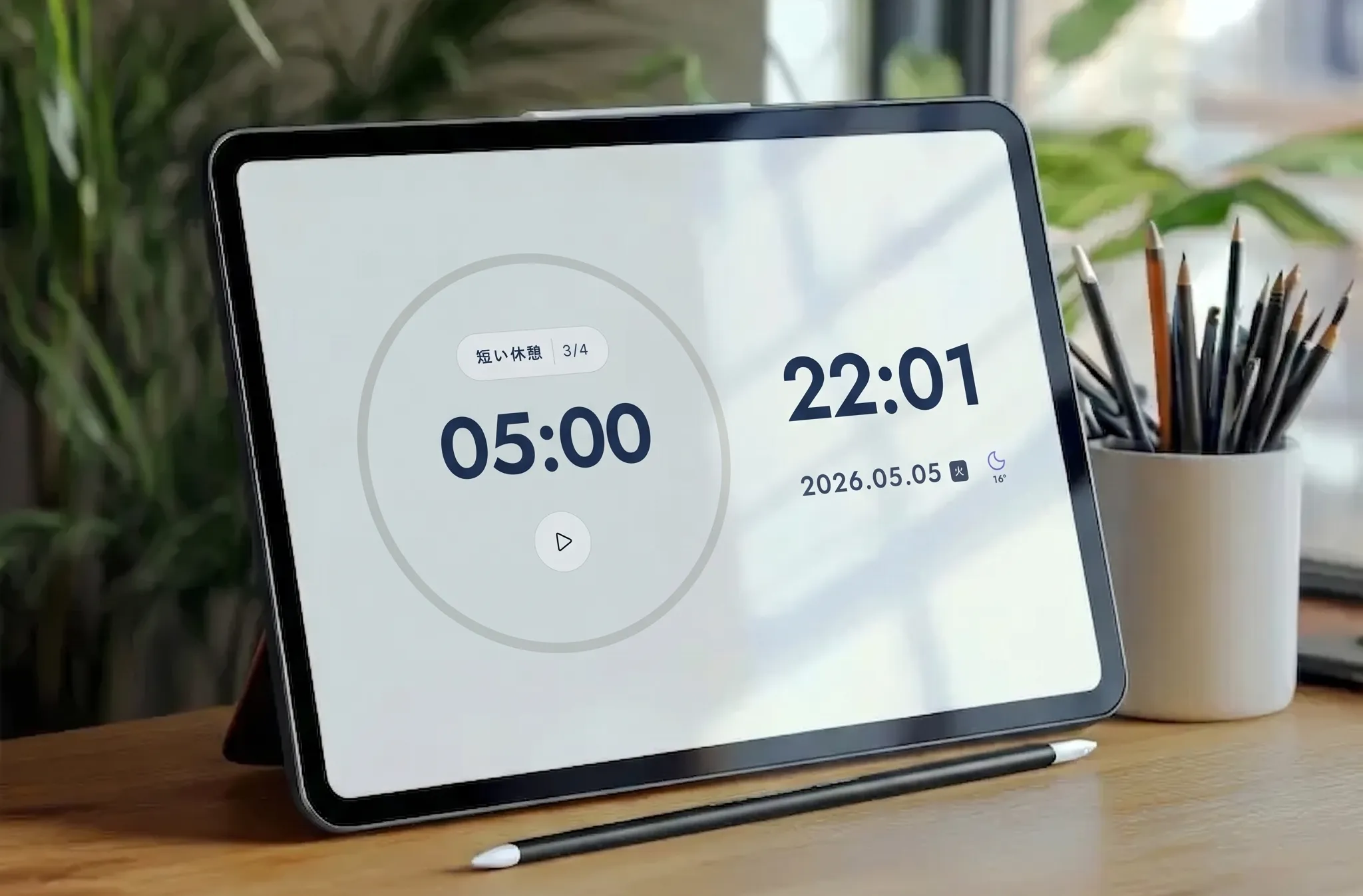
Work 25 minutes, rest 5, repeat. Change the lengths and rounds freely; a chime marks each switch.
Open Pomodoro
Pomo Clock (集中時計) — a free web app by Mihata
Pomo Clock is a clock app that runs in your browser. Timers, focus music and your favourite background live on one quiet screen. On work days, connect Google Calendar and it will remind you before each meeting.
Three ways to time
Work 25 minutes, rest 5, repeat. Change the lengths and rounds freely; a chime marks each switch.
Open Pomodoro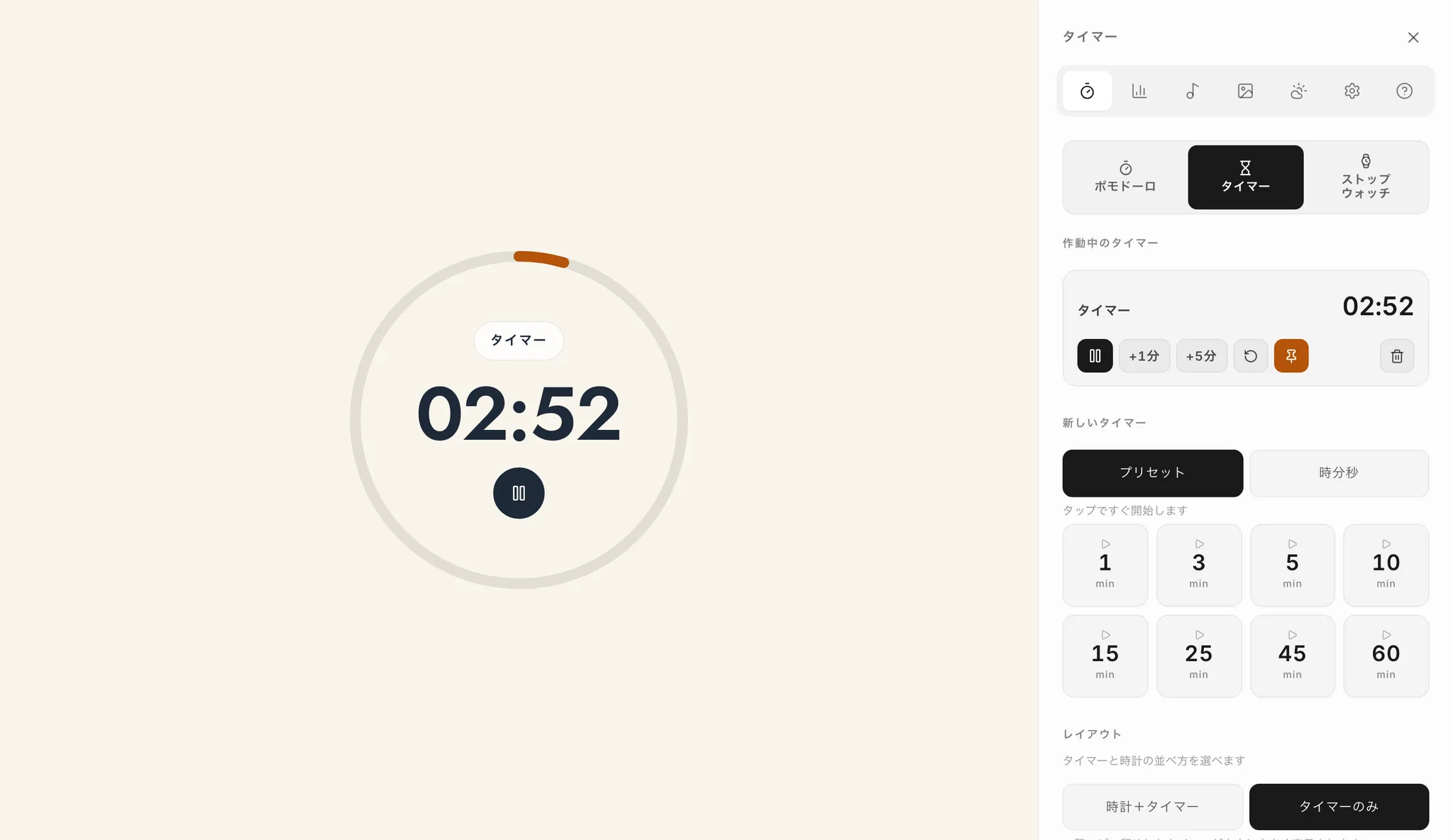
Presets like 3, 15 or 60 minutes, or just type a number. You can run several timers at once.
Open Timer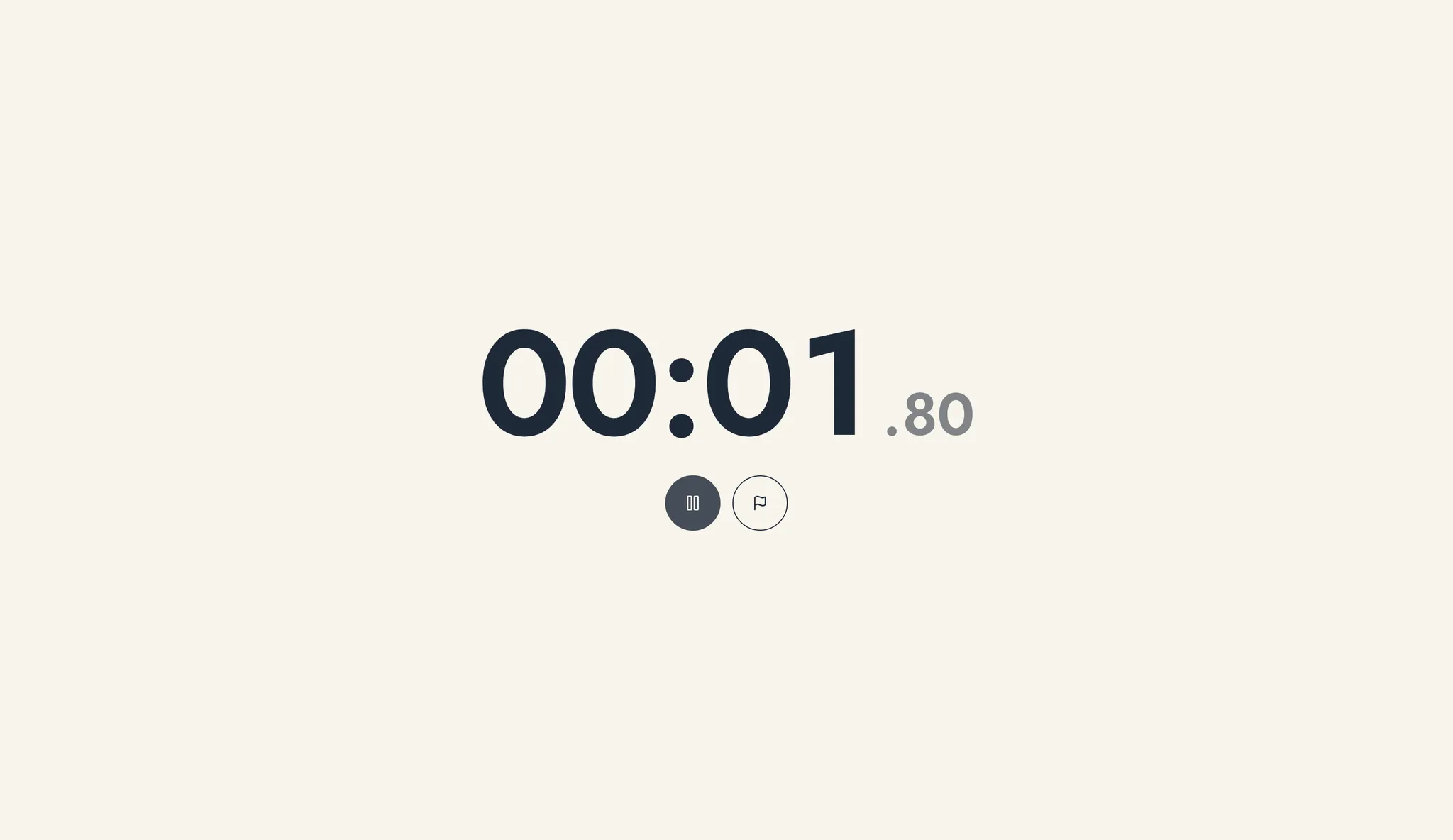
A stopwatch with laps, for when you simply want to measure how long something takes.
Open StopwatchA place to focus
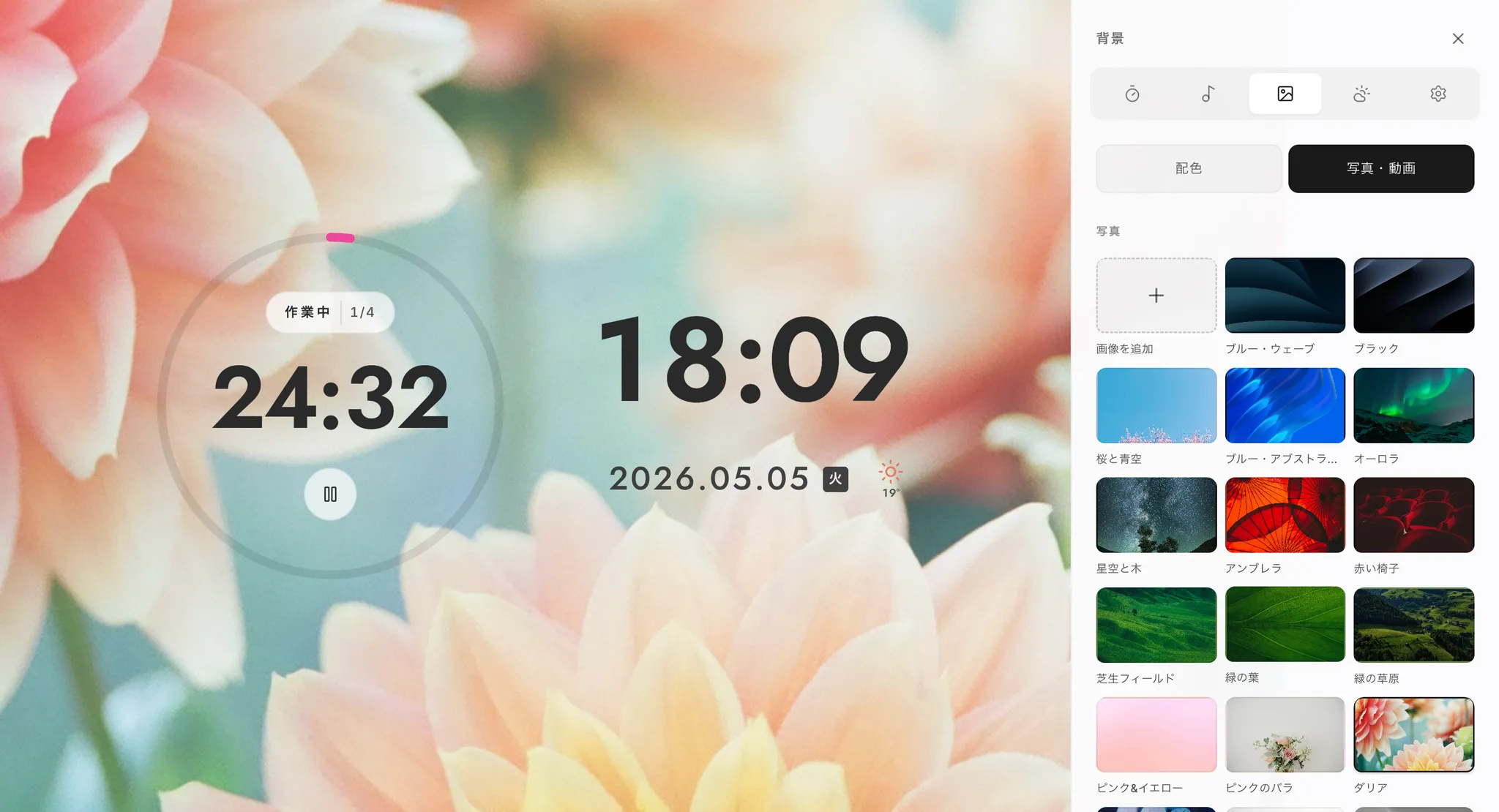
Solid colours, photos or videos — or your own photo.
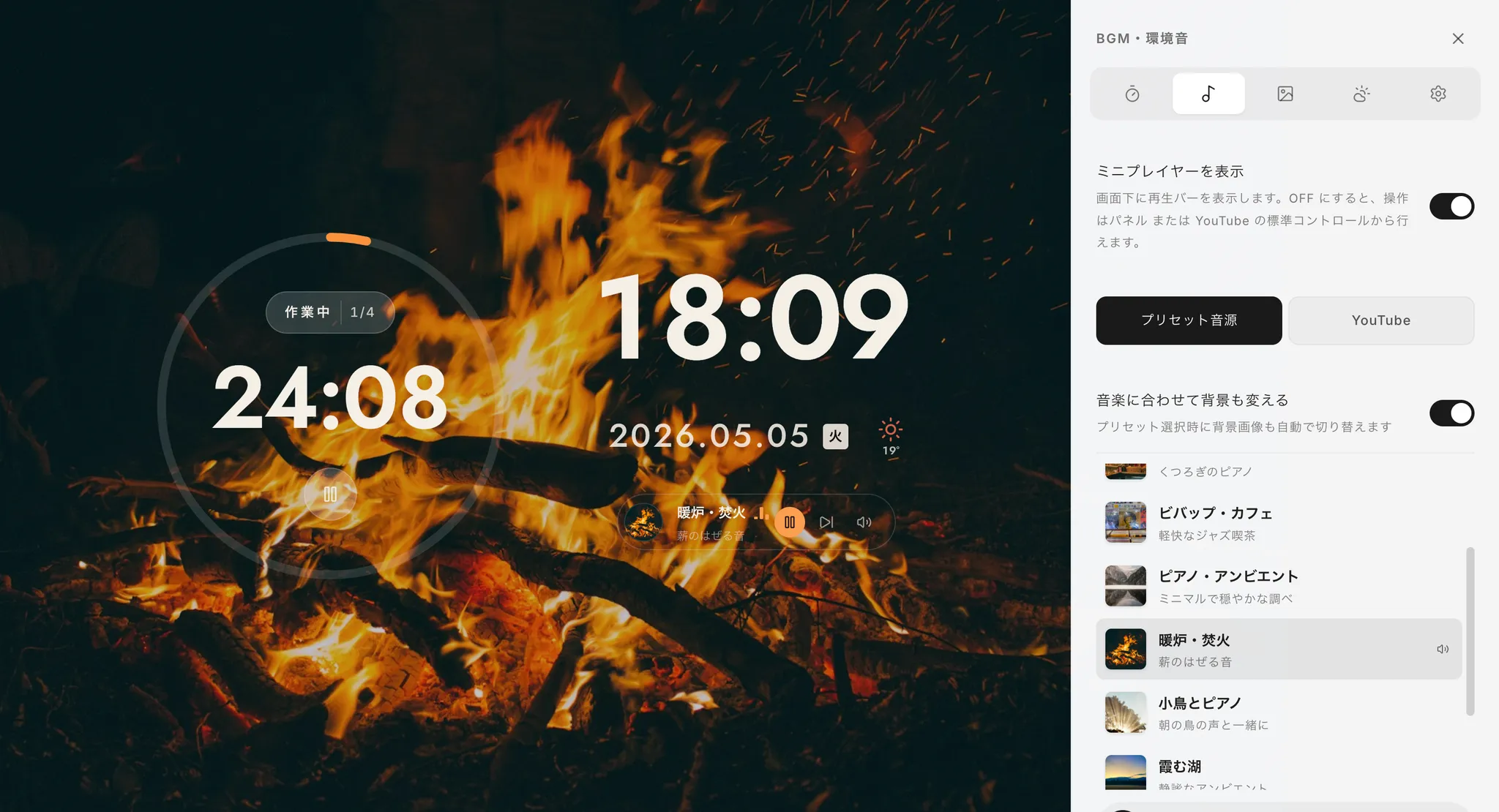
Campfire, rain, café, piano and more, playing alongside your timer.
Play your usual work playlist in a small player next to the clock.
Current weather and temperature beside the clock, with an hourly forecast.
Six typefaces, adjustable size, and optional seconds and date.
Track focused time per day. The log stays on this device only.
集中時計 for Business — Pomo Clock for Business (Beta)
Connect Google Calendar to see today's events under the clock and get a full-screen alert a few minutes before each meeting — so you never miss one while you're focused.
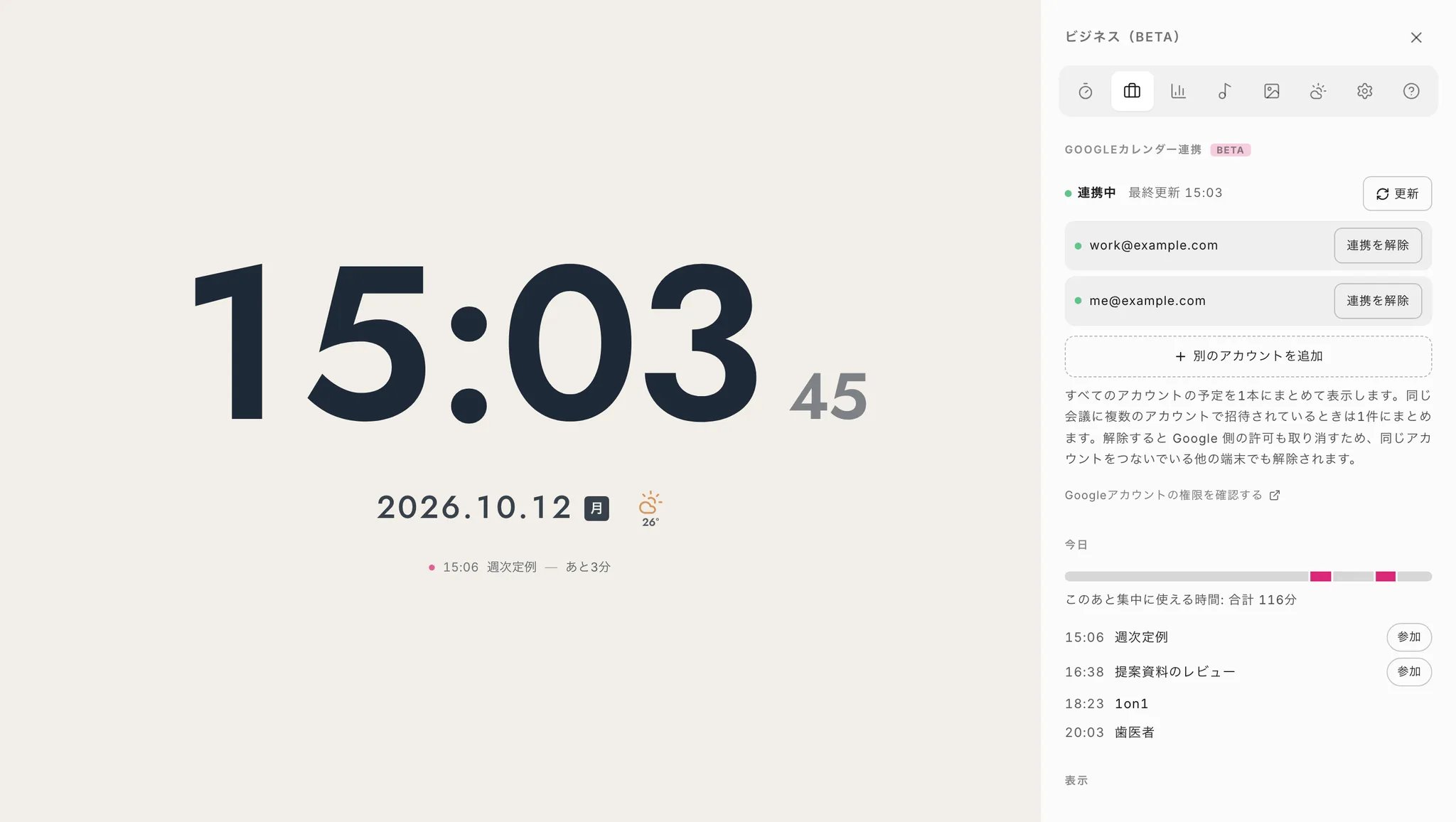
Shows your next event in one line, like "15:00 Weekly sync — in 12 min".
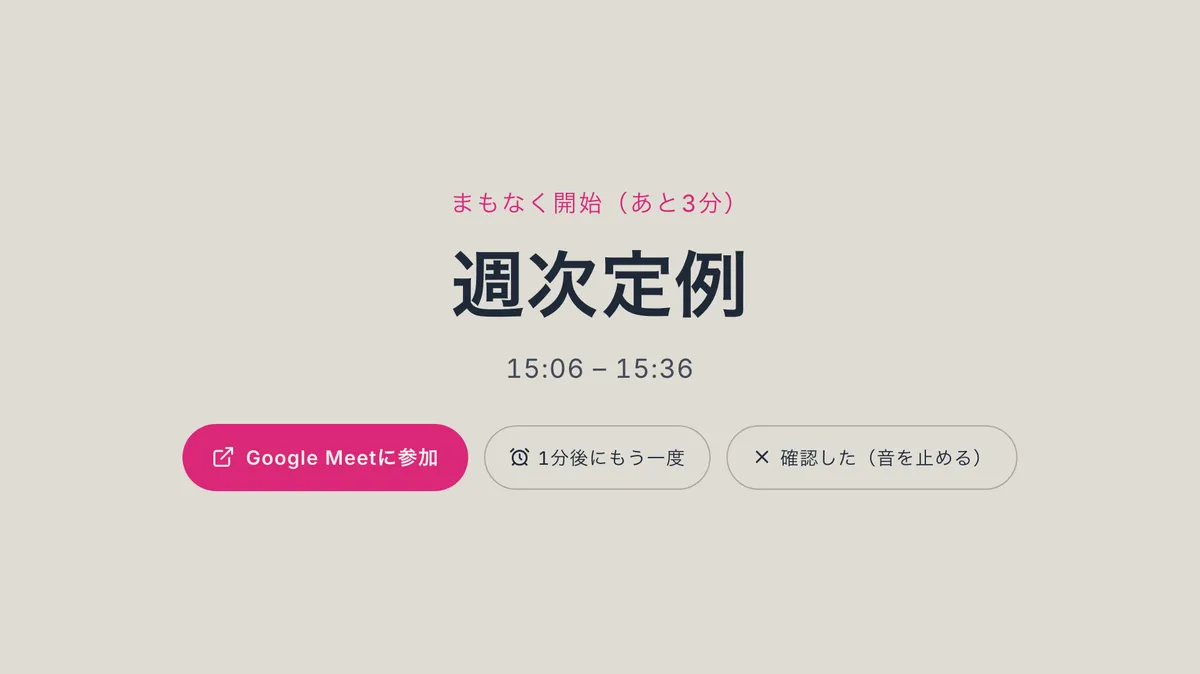
Choose how many minutes ahead. It chimes until you dismiss it and shows a join button for Google Meet, Zoom or Teams.
Connect up to six Google accounts, such as work and personal. A meeting you were invited to on two accounts shows once.
A bar shows the gaps between meetings in your working hours, with the total time left for focused work.
Google verification in progress
Until Google completes its review, a Google confirmation screen may appear while connecting. If it does, please check that the developer is mihata.jp before continuing.
How we handle Google user data
Here is what Pomo Clock reads through the Google Calendar integration and how it is handled. See section 9 of our Privacy Policy for details.
Pomo Clock's use and transfer of information received from Google APIs to any other app will adhere to the Google API Services User Data Policy, including the Limited Use requirements.
Yes. Every feature is free, with no sign-up or login (connecting Google Calendar only needs your permission in your Google account).
Yes. Just open it in the browser on iPhone, iPad or Android. Add it to your home screen to use it full screen like an app, and keep the screen awake while it runs.
Only in your browser (local storage). Nothing is sent to our servers, so clearing your browser data also clears them.
Events are re-read every five minutes, and again when you return to the tab or wake your device, so new or moved meetings are picked up quickly.
Once connected, temporary network problems never disconnect you. Only a real disconnection, such as revoking access in Google, shows “connection lost” under the clock, where you can reconnect.
Yes, unless your administrator restricts third-party apps. If so, please ask your administrator.
Pomo Clock is built and run by Mihata, a Japanese studio for web production and AI adoption. We made it for our own daily work and keep improving it based on what users tell us.
No sign-up, no install. The screen you open in your browser becomes today's workspace.
Open Pomo Clock