
Your iPhone screen goes dark in the middle of timing something, and you wonder whether the stopwatch just stopped. It did not. The stopwatch in Apple's built-in Clock app keeps running when you switch to another app or when the iPhone goes to sleep — Apple's own user guide says so (Apple Support: Use the stopwatch in Clock on iPhone). Open the app again and the elapsed time and laps are all still there.
So the real problem is not that the stopwatch stops — it is that you can no longer see it. This guide walks through the three settings that keep the numbers visible on iPhone, what to do on iPad (which has no StandBy), and when a browser stopwatch is the simpler fix. Everything below reflects the built-in features of iOS 27 / iPadOS 27.
Quick answer: which setting does what
What you want | Setting to change | Trade-off |
|---|---|---|
Keep the stopwatch screen on while the Clock app is open | Settings > Display & Brightness > Auto-Lock | Uses more battery |
Still see a dimmed time while the phone is locked | Settings > Display & Brightness > Always On Display | Supported models only; turns off when the phone is face down |
Watch elapsed time while using other apps | Live Activities (Lock Screen and Dynamic Island) | Small display; depends on model and app support |
1. Extend Auto-Lock so the screen stays on
The most reliable fix is Auto-Lock. Go to Settings > Display & Brightness > Auto-Lock and choose a longer delay (Apple Support: Adjust the screen brightness and color on iPhone). Leave the Clock app open and the large stopwatch digits stay on screen for that whole period.
Apple warns that delaying or turning off Auto-Lock can increase power consumption. For long sessions, plug in a charger — and set Auto-Lock back to its usual value when you are done. Forgetting that last step is the most common reason people later notice their battery draining faster than usual.
2. Use Always On Display to see it while locked
On models that support it, turning on Settings > Display & Brightness > Always On Display keeps a dimmed Lock Screen visible after the phone locks. If the stopwatch shows up there as a Live Activity, you can glance at the time without touching the phone.
Know when it switches off. Apple lists cases such as the iPhone lying face down, the screen being covered, being away from your paired Apple Watch, Low Power Mode, and the Sleep Focus. If you put the phone face down on the desk, the display turns off by design — keep it screen-up.
3. Show it over other apps with Live Activities
Live Activities keep an ongoing task on the Lock Screen and, on supported models, in the Dynamic Island at the top of the screen (Apple Support: View Live Activities in the Dynamic Island on iPhone). If nothing appears, check Settings > Apps > [the app] > Live Activities. Apple notes that not every app has this setting.
The Dynamic Island can only show a limited number of activities at once, so music playback or a phone call can shrink or hide the stopwatch. A practical tip: end other Live Activities before you start timing if you need the elapsed time to stay visible.
On iPad: there is no StandBy
iPhone has StandBy, which shows a large clock when the phone is charging on its side. iPad does not have StandBy, which is why you will not find the setting no matter where you look. To get something close on iPad, extend Auto-Lock and keep a full-screen app or web page open. The Clock app's stopwatch rotates with the device, but you cannot make it fill the screen with just the digits.
When the built-in settings are not enough: a browser stopwatch
"Bigger digits in landscape", "a lap list I can read from across the room", "the same look on iPhone and iPad" — these are hard to get from the Clock app alone. We built a free online stopwatch that runs in the browser with no install, and supports full-screen display, lap recording and keyboard controls.
To be upfront: it is not a magic always-on fix. It runs in a browser tab, so if Auto-Lock kicks in the screen still turns off, and it does not appear on the Lock Screen or in the Dynamic Island. The Auto-Lock setting above still applies. What it does well is show large, easy-to-read numbers while the screen is on. Because it calculates from the real start time, switching tabs or apps and coming back shows the correct elapsed time.
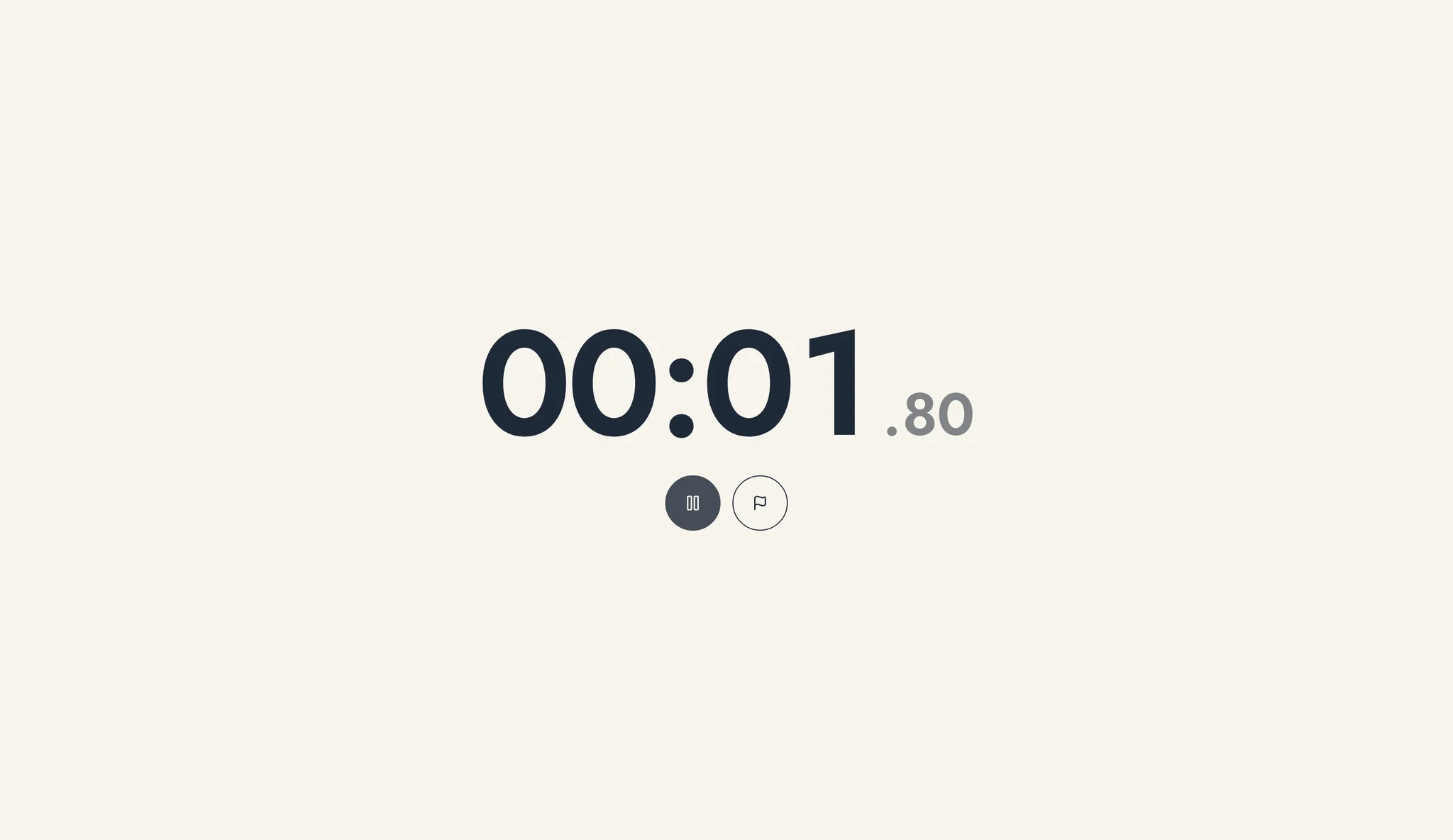
If you would rather not dig through device settings, it may be quicker to try it in your browser — we would be glad if you gave it a go.
For ways to keep laps and how it compares with other free tools, see online stopwatches with lap recording compared. To start, lap and stop without a mouse, see stopwatch keyboard shortcuts.
Which option should you use?
Situation | Best option | Why |
|---|---|---|
Timing a few minutes while watching the phone | Longer Auto-Lock + Clock app | One setting, completely reliable |
Timing for a long time while doing other things | Live Activities + charger | Visible without taking over the screen |
Showing the time to a room or from a distance | Browser stopwatch in full screen | Much larger digits |
Using an iPad like a desk timer | Auto-Lock off + full-screen web tool | iPad has no StandBy |
Still turning off? Check these four things
- Low Power Mode is on — it turns Always On Display off automatically.
- Sleep Focus has started — at bedtime the screen dims.
- The phone is face down — the display turns off when the screen faces the table.
- Auto-Lock was never set back — common after a previous long session, and it quietly drains the battery.
FAQ
Does the iPhone stopwatch stop when the screen turns off?
No. Apple's user guide says the stopwatch keeps timing when you open another app or when iPhone goes to sleep. Open the Clock app again and the elapsed time is still there.
How do I keep the stopwatch on screen?
Go to Settings > Display & Brightness > Auto-Lock and choose a longer delay, then leave the Clock app open. On supported models you can also use Always On Display. Apple notes this increases power use.
Why doesn't the elapsed time show on the Lock Screen or Dynamic Island?
Live Activities may be off. Check Settings > Apps > the app > Live Activities. Some apps have no such setting, and the Dynamic Island can only show a limited number of activities at once.
I can't find StandBy on my iPad.
iPad does not have StandBy; it is an iPhone feature. On iPad, extend Auto-Lock and use a full-screen app or web page instead.