
The short answer: stopwatches almost never have an official shortcut key
Compare the official instructions for the Windows Clock app, the Mac Clock app, and the iPhone Clock app side by side, and all four actions — start, lap, stop, and reset — are described as something you tap or click. None of the three platforms documents a dedicated keyboard shortcut. That leaves two realistic ways to run a stopwatch hands-on-keyboard: the OS-standard keyboard navigation (Tab to focus a button, then Space or Enter to press it), and assigning your own shortcut yourself. Most web-based stopwatches are built on this "Space activates the focused button" behavior, which is also where the pitfall described below comes from.
Keyboard operation by platform
This table only includes what each vendor documents officially. An empty "official key binding" column is itself the answer — it means nobody, including the vendor, publishes one.
Platform | Start / Stop | Lap (split) | Reset | Official key binding |
|---|---|---|---|---|
Browser-based (web) stopwatch | Tab to focus the button → Space / Enter | Same: focus → Space / Enter | Same | Varies by site. HTML buttons are activated by Space / Enter per spec (MDN) |
Windows 11 Clock app | "Start" button | Flag icon "Lap / Split" | Circular-arrow "Reset" | Not documented (official steps describe clicking only) |
Mac Clock app | "Start" button | "Lap" button | "Reset" button | Not documented. Tabbing between controls requires enabling "keyboard navigation" first |
iPhone (Clock app) | Tap "Start" | Tap "Lap" | Tap "Reset" | Not documented |
The quick stopwatch widget that appears directly in Google search results doesn't publish keyboard instructions either. Since it's just a button on a web page, it's safest to treat it the same as any other browser-based stopwatch.
Reaching for the mouse costs you both accuracy and focus
If you only time something once, clicking is fine. The problem shows up when you need to mark laps repeatedly while working. Taking your hand off the keyboard, moving to the mouse, aiming for a small button, and moving back — that round trip delays the lap itself. What gets recorded isn't the moment you meant to mark, it's the moment you finished reaching for the button. The more frequent your laps, the more that error compounds.
There's also a focus cost: the instant your eyes move to the stopwatch, your work context breaks. If the whole point of timing something is to measure your work without disrupting it, stopping to measure defeats the purpose. Keeping everything on the keyboard means your hands and your eyes both stay where the work is.
Running a web-based stopwatch with only the keyboard
Most browser-based stopwatches are built from standard HTML button elements. MDN's documentation states that when a button has focus, pressing Enter or Space activates it — the same as a click. So even without a dedicated shortcut, tabbing to the "Start" button once is enough; after that, Space alone starts and stops it.
The steps are just these three:
- Open the stopwatch page
- Press Tab until the "Start" button is focused (you'll see a focus outline)
- Press Space or Enter to start, press again to stop
To record a lap, Tab to the lap button and tap Space each time you want to mark one. Once focus is set, you never need the mouse again.
Watch out for: the "double-fire" Space bug, and page scrolling
If a web stopwatch has its own custom "Space = start/stop" shortcut, and focus is still sitting on the button you pressed last, both the custom shortcut and the browser's native "Space activates the focused button" behavior can fire at once. You meant to start it and it immediately stopped, or a lap got logged twice — that kind of glitch. Given MDN's documented keyboard behavior for buttons (Space and Enter both activate them), this collision is expected, not a bug in any one site.
The practical fix is simple: click once on empty space on the page to remove focus from the button, then use the Space key. That alone stops the double-fire. The opposite problem also exists — pressing Space while no button has focus can scroll the page in some browsers (MDN's own sample code calls preventDefault() specifically to stop this). If the clock scrolls out of view, scroll back up before trying again.
For developers: should you read the key or the code?
If you're building a stopwatch for your own site or an internal tool, there are two ways to read which key was pressed. Per MDN, KeyboardEvent.key returns the character that was typed — Space becomes a literal space character (" "). KeyboardEvent.code, on the other hand, returns the physical position of the key on the keyboard, unaffected by layout or modifier state. The official guidance is: use code for keys you want recognized by position (like WASD in games), and key for keys that matter as characters. If you're binding Space or a symbol key for laps, reading code keeps behavior consistent across JIS and US keyboard layouts.
If you'd rather not reinstall or reconfigure a stopwatch every time you need one, Mihata publishes a free browser-based version. It doesn't have flashy features, but it's guaranteed to be ready to measure the moment you open it.
Operating the Windows Clock app from the keyboard
Microsoft's official steps are: open "Clock" from the Start menu, select "Stopwatch," press "Start," mark splits with the flag-icon "Lap / Split" while it's running, "Pause" to stop, and the circular-arrow "Reset" to clear it. There's also an "Expand" button for full-screen display. None of this has an officially documented key binding.
What you can use instead are these two shortcuts, both of which are in Windows' own official shortcut list:
- Windows key + a number (0–9): opens the app pinned to that position on the taskbar (or switches to it if it's already running)
- Tab / Shift+Tab to move focus, Enter or Space to activate (documented officially as Settings-app navigation, but it applies the same way here)
Pin Clock to your taskbar, and you can reach the whole flow — Windows key + 3 (or whichever slot it's in) to launch it, Tab to the Start button, Space to begin timing — without ever touching the mouse. Whether Tab actually lands on the button you expect depends on the app's own implementation, so it's worth confirming once before you rely on it for something that matters.
On Mac, turn on keyboard navigation first
The Mac Clock app's official guide is also click-first: "Click Stopwatch → click Start → Lap → Reset." What matters on Mac is that Tab doesn't cycle through every control by default. Apple's official shortcut list documents:
- Tab / Shift+Tab: move to the next control / move to the previous control
- Control+F7 (or Fn+Control+F7): toggle what Tab cycles through, between "every on-screen control" and "text boxes and lists only"
If pressing Tab doesn't put a focus ring on any button, either press Control+F7 once, or turn on "Keyboard navigation" under Keyboard in System Settings. Once that's set, moving to a button and activating it with Space works the same way it does everywhere else.
Assigning your own shortcut (only where there's an official way to do it)
Mac: bind a key in the Shortcuts app
macOS's Shortcuts app lets you assign a key combination to a shortcut you've created. Apple's official guide describes it this way: double-click a shortcut in Shortcuts, click the Info button, click "Add Keyboard Shortcut," then press the key combination you want. To remove it, click the shortcut-key field and press Delete. Per Apple's own note, key combinations already reserved by the system can't be overridden. If you bundle "start timing" and "export the log" into a single shortcut, you can trigger the whole flow with one keypress.
Windows: shortcut the app launch instead
There's no official procedure for binding a key directly to an action inside the Windows Clock app. What's confirmed, as above, is the "Windows key + number" launch shortcut. If what you actually want is to start timing with a single keypress, keeping a keyboard-friendly web stopwatch open in the browser is the most reliable option within what's officially documented. Don't rely on an unofficial key-binding trick for anything you actually need to measure correctly — that's the safest rule here.
Running a full measurement with only the keyboard: start → lap, repeatedly → stop → copy
- Setup: open the stopwatch, then click once on empty space to clear focus (this prevents the Space double-fire described above)
- Start: Tab to the "Start" button, press Space or Enter
- Lap: Tab once or twice to reach the lap button, then tap Space each time you want to mark a split (focus doesn't move, so you can keep tapping)
- Stop: Shift+Tab back to the start/stop button, press Space to stop
- Copy: to grab the lap list without dragging anything, select the displayed numbers and copy with Ctrl+C (Cmd+C on Mac). Neither the Windows nor Mac Clock app has an official export feature for lap lists, so if you need to keep a record, it's more reliable to start with a tool that saves one
If you want to keep the measurement itself as a work-time record, see how to choose a free web stopwatch that keeps a lap log. For simply counting up elapsed time, a browser count-up timer is sometimes the better fit.
Small habits that cut down on mis-presses
- Use the same key for start and stop: this removes the extra step of checking whether it's currently running before deciding which key to press. One toggle key means you never have to look to know what to press.
- Keep Reset on its own key, ideally with a modifier: mis-pressing start, stop, or lap just adds an extra line to your log. Mis-pressing reset erases everything. Never put it next to the key you're repeatedly tapping.
- Place the lap key somewhere you can hit repeatedly without moving focus: for frequent splits, keep your finger able to hit the same key over and over without refocusing anything.
- Do one dry run before the real measurement: running through start → lap → stop → reset once before it counts catches double-fires and focus slips before they matter.
Keeping the clock itself in view helps too. If you want it visible above your work window at all times, or want the time shown large enough to read at a glance, Mihata's timer and clock cover both full-screen and large-display modes.
If what you actually need is a countdown rather than a stopwatch, the fixed-length pages work the same way from the keyboard — Tab to the start button, then Space — and open with the minutes already set: a 5 minute timer or a 20 minute timer.
Mihata's "Concentration Clock" stopwatch
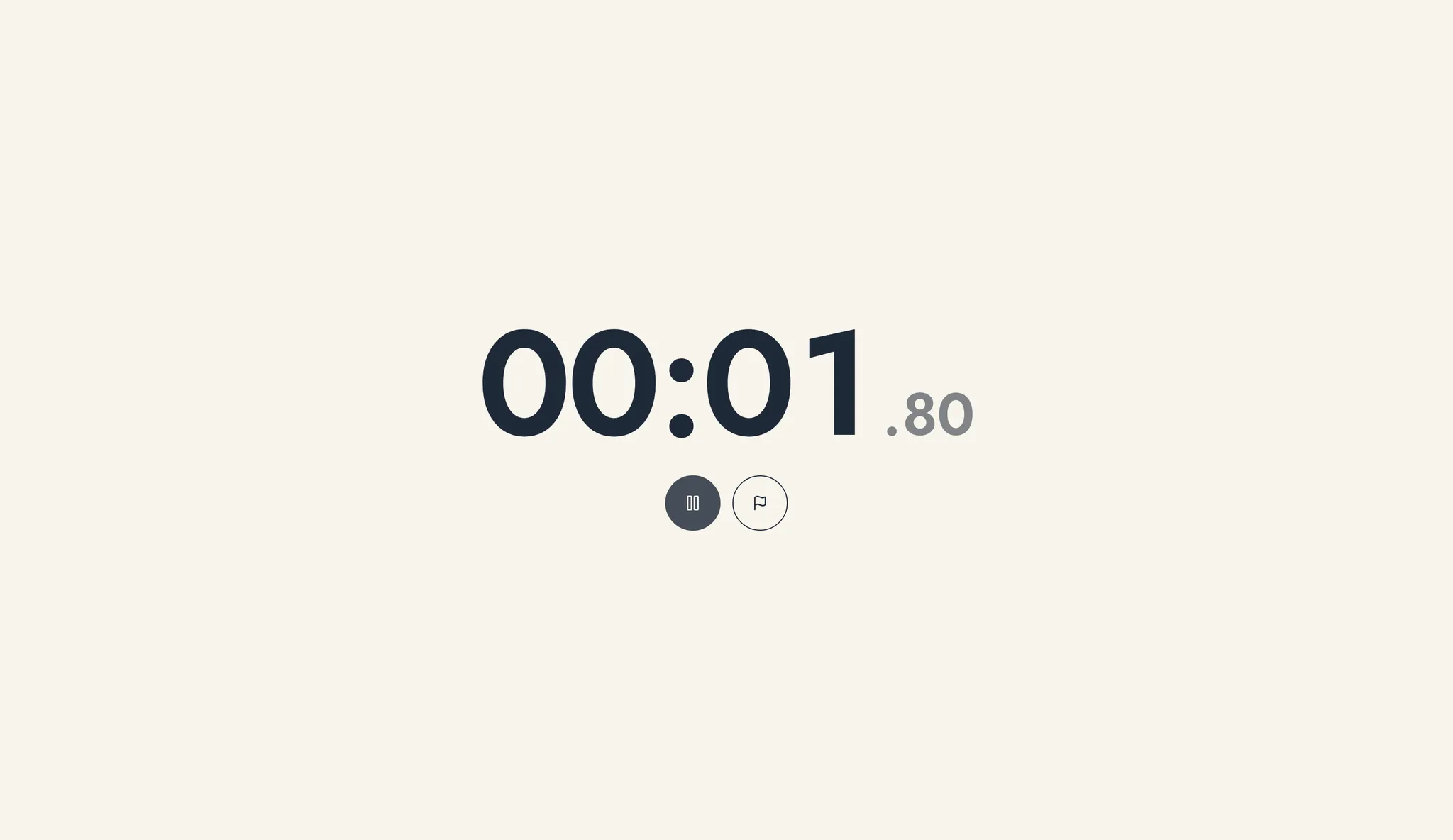
Mihata's free browser stopwatch with lap times works the moment you open it — no install, no account. The Start/Pause, Lap, and Reset controls are built as standard HTML buttons, so Tab to focus them, then Space or Enter to press them (there's no custom shortcut key at this time — as this article explains, adding one means deliberately designing around the double-fire issue, so we're being careful about it).
Laps appear in a running list, and once you've logged two or more, the fastest and slowest splits are color-coded. Everything is stored locally in your browser; nothing is sent to a server.
Summary
Look as hard as you want — there's no official shortcut key for a stopwatch. That's not a gap, it's the answer: what every platform actually gives you is Tab plus Space or Enter. On the web, click empty space once, then use Space. On Windows, pin it to the taskbar and use Windows key + number. On Mac, turn on keyboard navigation first. Once you've set up those three, you never have to reach for the mouse to take a measurement again.
If you need to track work hours internally, or want to automate how timing results get logged and tallied, Mihata can help design something that fits the tools you already use.
FAQ
Can I start and stop a stopwatch with the Space key?
Often yes — but not because of a dedicated shortcut. It works because, when a button has focus, the Space key activates it the same way a click would. Tab to the Start button first, then press Space.
Pressing Space seems to start and stop it at the same time.
That's likely the custom shortcut and the browser's native button activation firing together. Click once on empty space to remove focus from the button, then use Space again.
Does the Windows Clock app have a keyboard shortcut?
Microsoft's official documentation doesn't list key bindings for starting, lapping, or resetting the stopwatch. What is documented is pinning it to the taskbar and launching it with the Windows key plus a number, then using Tab and Space to operate it.
Tab doesn't move focus to any button on Mac.
By default, Tab may only cycle through text boxes and lists. Press Control+F7 (or Fn+Control+F7) to switch what Tab cycles through, or turn on Keyboard navigation under Keyboard in System Settings.
Can I create my own keyboard shortcut?
On Mac, double-click a shortcut in the Shortcuts app, click Add Keyboard Shortcut, and press the key combination you want. Key combinations already reserved by the system can't be overridden.