
図解
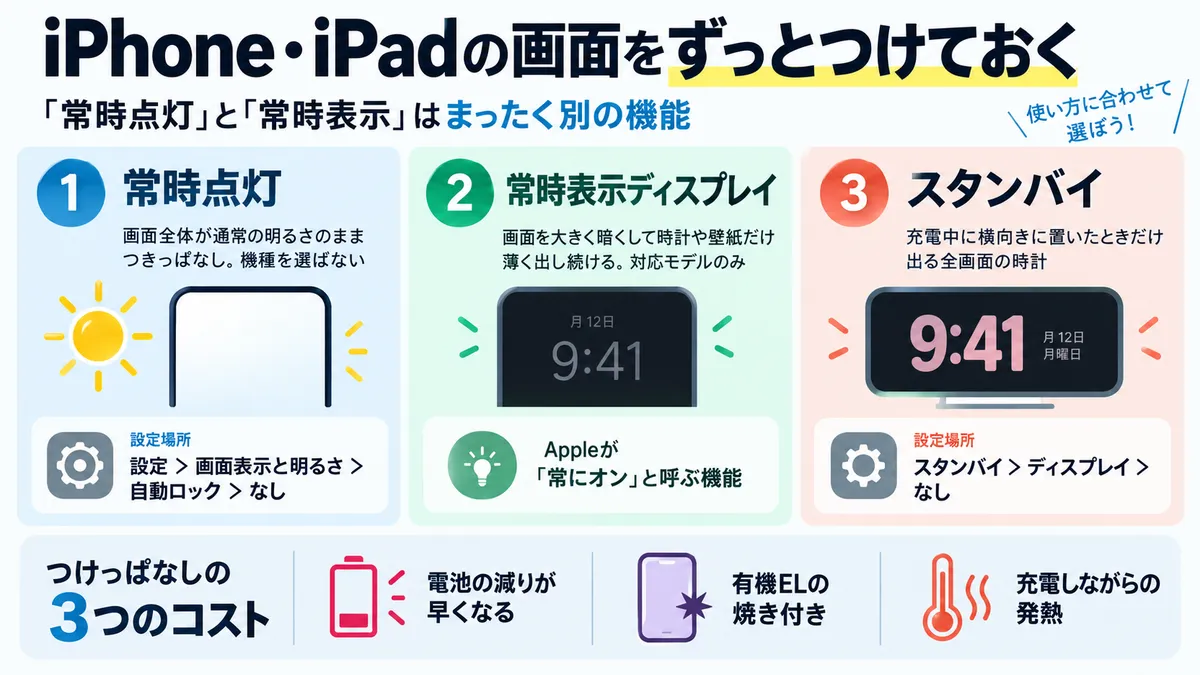
Want your iPhone or iPad screen to stay on — as a desk clock, a recipe on the kitchen counter, or a timer during class? There is no single "always on" switch in Settings. The answer depends on what you want, and Apple spreads it across three places. This guide covers each one with the exact menu path, why the screen may still go dark, and the battery and burn-in trade-offs.
Quick answer: three different features
What you want | Setting | Works on |
|---|---|---|
Keep the whole screen on at normal brightness | Settings > Display & Brightness > Auto-Lock > Never | Any iPhone or iPad |
Keep a dimmed clock on the Lock Screen | Always On display | Supported iPhone models only |
A full-screen clock while charging | StandBy > Display > Never | iPhone (not iPad) |
If you cannot change these settings at all — a work phone locked by your company, for example — you can still keep the time on screen without touching any setting: open a full-screen clock in the browser and leave it there. Our free browser clock needs no install or sign-up.
Keep the iPhone screen on (Auto-Lock: Never)
- Open Settings.
- Tap Display & Brightness, then Auto-Lock.
- Choose Never (or a longer time).
Apple's iPhone User Guide describes this path and adds a note worth taking seriously: "Delaying or preventing Auto-Lock may increase power consumption." If the phone will sit on a desk all day, keep it on a charger.
Auto-Lock is greyed out or "Never" is missing
- Low Power Mode is on. While it is on, Auto-Lock is held at a short time. Turn it off in Settings > Battery.
- The device is managed. On phones issued by a company or school, a configuration profile (MDM) can fix the Auto-Lock time. Ask the administrator rather than removing the profile yourself.
Why the clock still goes dark on the Lock Screen
This is usually the Always On display, not Auto-Lock. Apple says the Always On display turns off when the iPhone is face down or obstructed from view, when it is not near a paired Apple Watch, when a CarPlay session begins, while Continuity Camera is in use, while Low Power Mode is on, while Sleep Focus is on, or at your usual bedtime. If your clock disappears only at night or when the phone lies face down, it is working as designed.
Use StandBy as a desk clock that never turns off
StandBy (iOS 17 and later) shows a full-screen clock, widgets or photos while the iPhone is charging on its side. For a bedside or desk clock it fits better than Auto-Lock.
- Make sure StandBy is on in Settings > StandBy.
- Connect the iPhone to a charger and set it on its side so it stays still.
- Press the side button, then swipe left or right to switch between widgets, photos and the clock.
Then open Settings > StandBy > Display:
Option | Behavior | Best for |
|---|---|---|
Automatically | Turns off when you are not using it and the room is dark | Bedroom |
After 20 Seconds | Turns off after 20 seconds | Saving battery |
Never | Stays on while StandBy is active | Desk or kitchen clock |
Night Mode tints the screen red in the dark, which is easier on the eyes at night. If the StandBy clock does not appear at all, see why the iPhone StandBy clock is not showing.
Which iPhones have the Always On display
The dimmed "always on" Lock Screen is a hardware feature. Apple's user guide lists iPhone 14 Pro and 14 Pro Max, iPhone 15 Pro and 15 Pro Max, iPhone 16 Pro and 16 Pro Max, iPhone 17, iPhone 17 Pro and 17 Pro Max, and iPhone Air. Note that the standard iPhone 17 is included — earlier, only Pro models had it. Apple's specification pages for iPhone 18 Pro, 18 Pro Max and iPhone Duo, announced in September 2026, also list an Always-On display. How to turn it on and what to do on older models is covered in the iPhone Always On Display clock guide.
Keep the iPad screen on
iPad has neither the Always On display nor StandBy, so there is only one switch: Settings > Display & Brightness > Auto-Lock > Never. The iPad User Guide carries the same power-use note as the iPhone guide.
If the iPad still sleeps, check Low Power Mode, any school or company profile, and the case: a magnetic cover such as a Smart Cover can put the iPad to sleep regardless of Auto-Lock. You can change that under Display & Brightness > Lock / Unlock (shown when a compatible cover is used). For turning an old iPad into a permanent desk clock, see how to use an iPad as a desk clock.
Android, for comparison
Android calls it Screen timeout. On a Google Pixel it is under Settings > Display (on recent versions, Display & touch) > Screen timeout. Many Android phones have no "Never" option and stop at the longest time on the list, so an app or a browser clock that keeps the screen awake is often the quicker fix. Options are compared in Android always-on clock apps.
Three costs of leaving the screen on
- Battery. Apple says disabling Auto-Lock may increase power consumption. Run it on a charger.
- OLED burn-in. A static image in the same spot for a long time can leave a faint mark. Lower the brightness and use a clock whose layout or background changes.
- Heat while charging. Remove a thick case and keep it out of direct sun. iPhone may pause charging when it is warm; that is a safety feature, not a fault.
The simplest option: a browser clock
If the goal is just to see the time, set Auto-Lock to Never and open a full-screen clock in Safari. It works the same on iPhone, iPad, Android and a PC, and changing the background now and then also helps with burn-in. Our free full-screen browser clock lets you change the background and text color.
Summary
- Screen on at full brightness: Settings > Display & Brightness > Auto-Lock > Never (iPhone and iPad).
- Still turning off: check Low Power Mode and any management profile. The Always On display turns off face down, in Sleep Focus and at bedtime by design.
- Desk clock while charging: StandBy > Display > Never.
- Dimmed Lock Screen clock: Always On display, supported models only.
FAQ
Is there an "always on" setting for the iPhone screen?
Not under that name. To keep the screen on, go to Settings > Display & Brightness > Auto-Lock and choose Never. The Always On display is a separate feature that shows a dimmed Lock Screen on supported models.
I set Auto-Lock to Never but the screen still turns off. Why?
Check Low Power Mode first; while it is on, Auto-Lock is held at a short time. On a company or school device, a configuration profile may fix the Auto-Lock time. If it is the dimmed Always On display that disappears, Apple says it turns off face down, in Sleep Focus or at your usual bedtime.
Can my iPhone stay on as a clock while charging?
Yes. Set Settings > StandBy > Display to Never. StandBy starts when the iPhone is charging, placed on its side and still, and you press the side button.
How do I keep my iPad screen from turning off?
Go to Settings > Display & Brightness > Auto-Lock and choose Never. iPad has no StandBy or Always On display. If it still sleeps, check Low Power Mode and whether a magnetic cover is locking it.