
Have you ever wanted to keep a clock displayed on your iPhone the entire time? While working at a desk, while cooking in the kitchen, or as a clock on your nightstand — turning your iPhone into an always-on clock removes the need to tap the screen at all. This article walks through how to use the Always-On Display (AOD) on iPhone 14 Pro / 15 Pro / 16 Pro / 17 Pro, plus practical workarounds for getting an always-on-style clock on iPhone 13 or earlier and SE models that lack AOD — written from Mihata's hands-on perspective.
What Is the iPhone "Always-On Display"?
The Always-On Display (AOD) is a feature that keeps the iPhone screen on at very low brightness even while locked, continuing to show a dim version of the clock, widgets, and wallpaper. The same idea was first adopted on Apple Watch and was later brought to the Pro lineup of iPhone, starting with iPhone 14 Pro.
Which iPhones Support AOD and StandBy
AOD has hardware requirements and isn't available on every iPhone. StandBy, on the other hand, works on every iPhone that runs iOS 17 (iPhone XS and later). Here is the support matrix as of May 2026.
Model | Always-On Display (AOD) | StandBy mode |
|---|---|---|
iPhone 17 Pro / 17 Pro Max | Supported | Supported (can stay on) |
iPhone 17 / 17 Air | Not supported | Supported (does not stay on) |
iPhone 16 Pro / 16 Pro Max | Supported | Supported (can stay on) |
iPhone 15 Pro / 15 Pro Max | Supported | Supported (can stay on) |
iPhone 14 Pro / 14 Pro Max | Supported | Supported (can stay on) |
iPhone 14 / 15 / 16 / 17 (base / Plus) | Not supported | Supported (sleeps after about 20s) |
iPhone 13 series / SE 2nd & 3rd gen / iPhone XS to 12 | Not supported | Supported (sleeps after about 20s) |
The key takeaway: StandBy itself works on every iPhone XS and later running iOS 17. But keeping the screen lit (always on) is only possible on Pro models that have ProMotion (a refresh rate that drops to 1Hz) and a low-power display. On other models the StandBy screen lights up briefly with a tap or a Hey Siri command and turns off automatically after about 20 seconds.
AOD vs StandBy
StandBy mode, added in iOS 17, displays a large clock and widgets while the phone is on its side and charging. StandBy works on every model supported by iOS 17, but only AOD-capable Pro models can stay on. On other models, the screen lights up briefly when tapped or via Siri.
Turning On Always-On Display on iPhone 14 Pro and Later Pro Models
On supported models, setup is simple. AOD is on out of the box, but it may have been turned off automatically for power saving — worth verifying once.
Basic On / Off Setting
- Open the Settings app
- Tap "Display & Brightness"
- Scroll down and tap "Always On"
- Toggle on "Always On Display"
Within this menu you can also independently toggle whether the wallpaper and notifications are shown. If you'd rather see a minimal clock with less visual noise, turn both off — you'll get a black background with just the clock.
Save More Battery by Linking AOD to Focus Modes
AOD drops the refresh rate to 1Hz, so the impact on battery is small by spec. If you want to save even more power, you can auto-disable AOD via Focus modes (Sleep, Do Not Disturb, etc.). Go to Settings > Focus > pick a mode > Screen Options, then turn off "Always On Display" — your screen will go fully dark only while you're asleep.
If AOD Doesn't Light Up — Checklist
- Is the iPhone face-down on a surface? (Face-down detection turns it off.)
- Is it in a pocket or a bag? (The proximity sensor turns it off.)
- Is Low Power Mode on? (AOD pauses while it's on.)
- Is your Apple Watch out of range? (It can disable AOD via integration.)
These are by-design behaviors, not malfunctions. They're intentional, meant to prevent distraction.
Using StandBy as a Desk or Bedside Clock
On AOD-supported models, pairing the iPhone with a MagSafe charger (or a horizontal stand) instantly turns it into a bedside or desk clock. Even on models without AOD, StandBy works well as a temporary desk clock.
Conditions to Trigger StandBy
StandBy launches automatically when these three conditions are met:
- The iPhone is charging (wired, MagSafe, or Qi all work)
- The iPhone is fixed in a horizontal orientation
- The iPhone is locked
The first time, you'll see an enable-StandBy menu — tap "Continue." After that it launches automatically every time those conditions are met.
Customizing the Clock View
StandBy has three views you can swipe between left and right. For the clock view, swipe to the third screen, then swipe up and down to choose between five clock styles (Digital, Analog, World, Solar, Float). You can change colors with a long-press as well.
Where StandBy Falls Short
StandBy is convenient, but it requires charging + horizontal + locked. It can't quite handle uses like "display a clock while charging vertically on the desk," "stand the iPhone next to my PC without a horizontal stand and show a clock," or "show an always-on clock on iPhone 13." That's where the next chapter — "open a clock app in your browser" — comes in.
Trick: Get an Always-On-Style Clock Even Without AOD
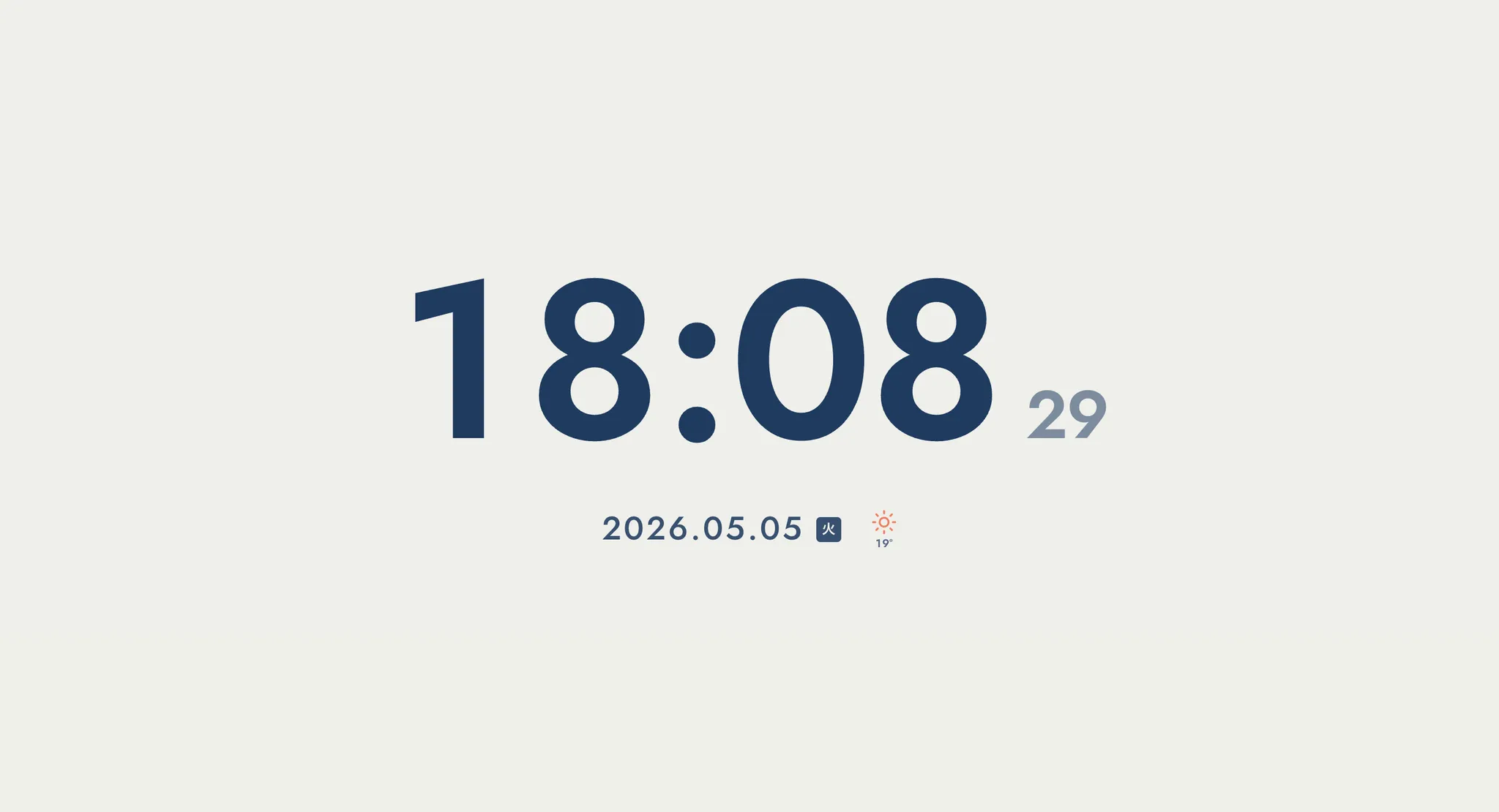
For users on iPhone 13 or earlier, SE models, or base iPhone 14 / 15 / 16 / 17 — the easiest way to keep a clock on screen is to open a clock web app in your browser. Mihata's Focus Clock is a representative example: open the URL and the screen becomes a fullscreen clock.
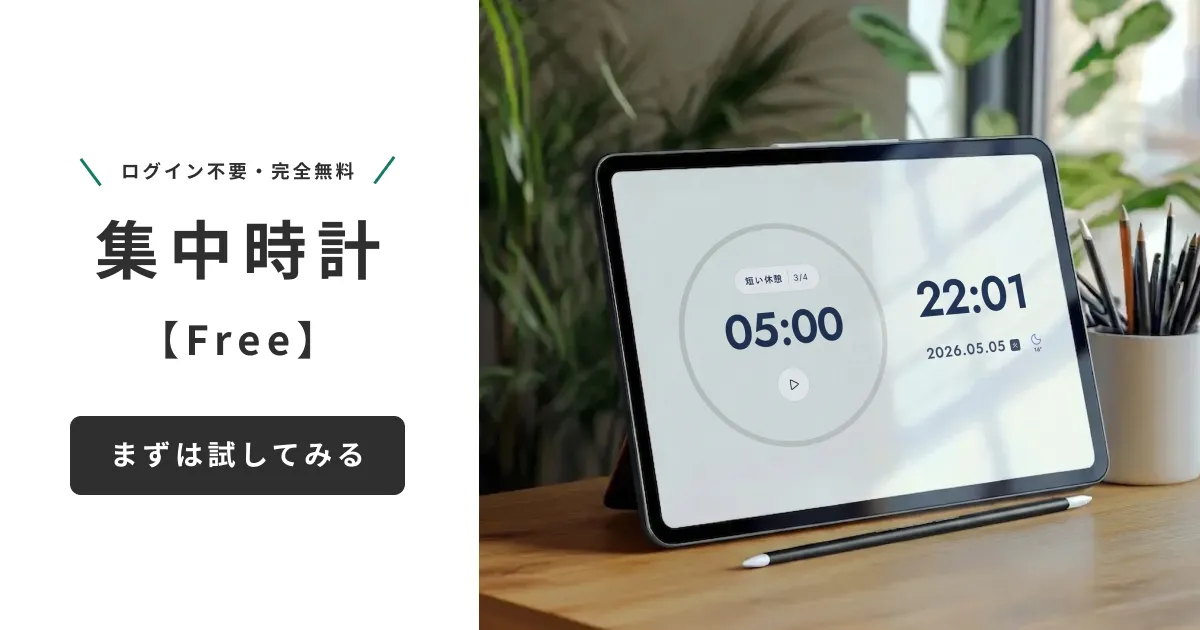
How to Show a Fullscreen Clock in Safari
- Open https://mihata.jp/en/clock in Safari
- Use the fullscreen button at the bottom right to enter fullscreen
- Go to Settings > Display & Brightness > Auto-Lock and choose "Never" or a long enough interval
- Plug the phone into a charger and leave it as is
That's it — even an iPhone 13 or SE now displays a clock that doesn't time out. Unlike AOD, the entire wallpaper and app screen stays lit, so power consumption is higher than AOD. We recommend running it while plugged in.
Why a Browser-Based Clock Is So Useful
- No App Store install
- No login or sign-up required
- The same URL works on iPhone, iPad, Mac, and Windows PC
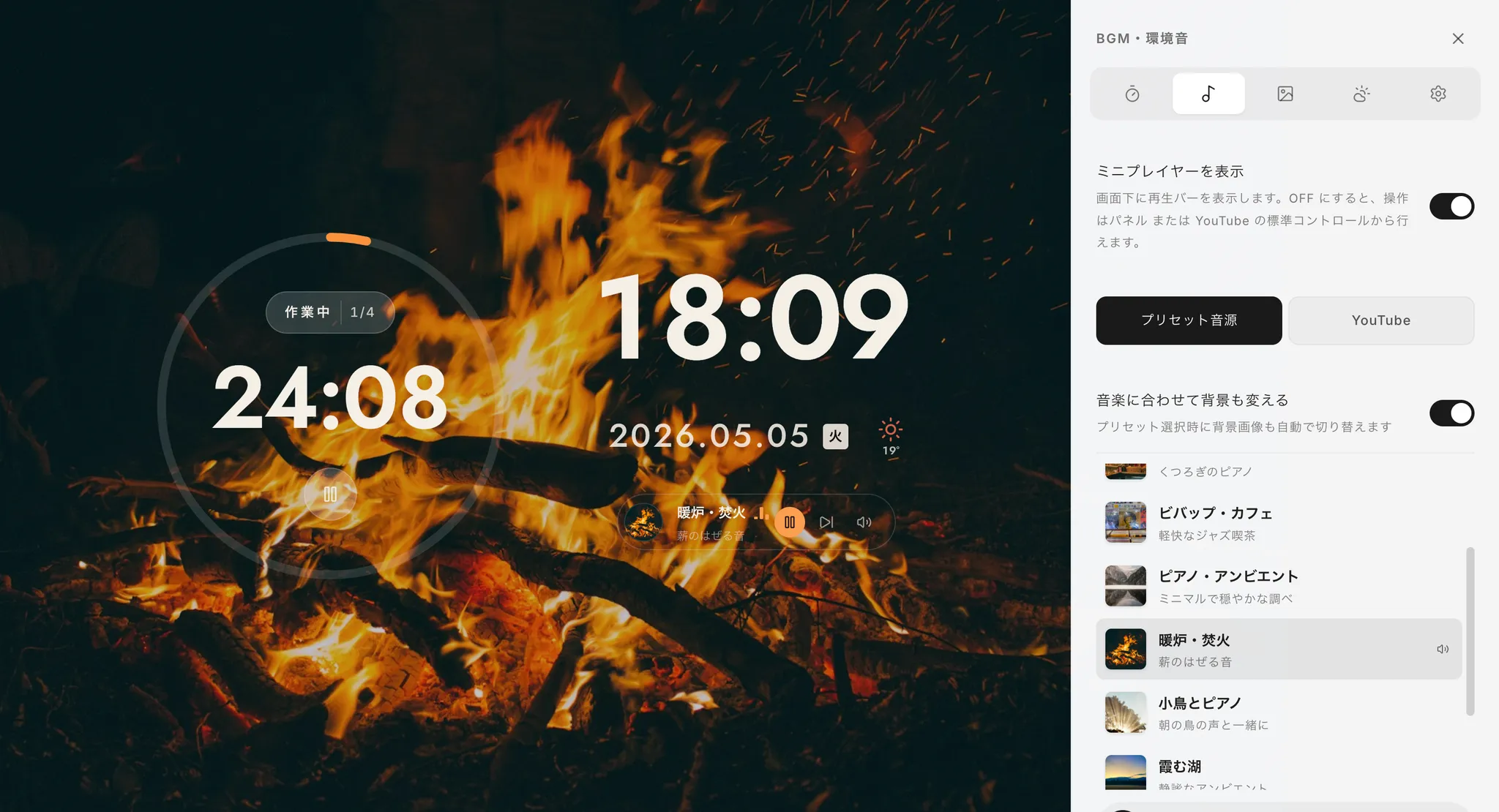
- Wallpaper, font, and even ambient music can be customized
It really shines in cases like "my work iPhone won't let me freely install apps" or "I want a clock on a family-shared iPad."
Add It to the Home Screen as a PWA
Focus Clock supports PWA (Progressive Web App). From Safari's share menu, choose "Add to Home Screen" and an icon is added — from the next launch on, it opens like a native app. The address bar disappears for a fullscreen-like experience and the look becomes cleaner.
Recommended Always-On Patterns by Scene
Let's organize each approach by where it fits best to play to AOD's and the browser clock's respective strengths.
Bedside / Bedroom
If you have iPhone 14 Pro or later, place it horizontally on a MagSafe stand and rely on StandBy. At night it auto-switches to Night mode, dimming to a soft red clock that won't disturb sleep. On non-AOD models, the alternative is Mihata's Focus Clock with a black background and a large clock font, on a vertical stand.
Desk Work / While Working
To check "how many minutes until the next meeting" while working, treating the iPhone like a sub-display — vertical, with a fullscreen browser clock — is comfortable. Focus Clock also has a Pomodoro timer (25 minutes focus, 5 minutes break, with Web Worker support so it keeps running when you switch tabs), so it doubles as a clock and a work timer.
Kitchen / Living Room
When your hands are messy mid-recipe and you don't want to tap the screen, an AOD-equipped iPhone simply sitting on the counter does the job. Without AOD, it's also effective to repurpose an iPad or an old iPhone as a "clock-only device." Focus Clock's countdown also works as a kitchen timer.
What About Battery Life and Burn-In?
"Doesn't leaving the screen on cause burn-in?" "Won't this shorten my battery life?" — both reasonable concerns. Here's the reality.
iPhone OLED and Burn-In
iPhone Super Retina XDR displays are OLED, so in theory continuous static content can cause burn-in. Apple counters this with pixel shifting and brightness control, and reports of practical AOD burn-in are essentially nonexistent. If you run a browser clock fullscreen for very long stretches, vary the background color occasionally or use a wallpaper that shifts the clock position for additional safety.
Tips to Extend Battery Life
- Keep AOD running while charging (avoids extra cycles)
- Let auto-brightness handle screen brightness
- Use Focus modes to auto-disable AOD when you're not using the phone
- On days you'll use the browser clock for long stretches, combine with Low Power Mode
iPhone batteries are designed around roughly one charge cycle per day. "Stationary use plugged in" can actually be gentler on the battery than typical out-and-about discharge-and-charge.
Conclusion: Combine AOD and Focus Clock to Fit Your Needs
The right way to keep a clock on your iPhone depends on the hardware you have. To recap:
Which Approach Fits You?
- iPhone 14 Pro / 15 Pro / 16 Pro / 17 Pro users: Turn on AOD in Settings first, and use StandBy in the bedroom
- Base iPhone 14 / 15 / 16 / 17 users: StandBy is supported but turns off after about 20 seconds. Pair it with a browser clock for true always-on
- iPhone 13 or earlier / SE users: StandBy works but won't stay on; AOD isn't supported. Realistically, a web app like Focus Clock is the best path to always-on display
Who Should Use Mihata's Focus Clock
If any of these sounds like you, Focus Clock — install-free, login-free, and completely free — is a strong fit: "I want a beautiful clock in any browser regardless of model," "I want a Pomodoro timer and ambient music alongside it," "I want to repurpose an iPad or old phone as a dedicated clock." All settings are saved to local storage only, so privacy is protected. It runs in any modern browser on iPhone, iPad, Mac, Windows, Android, and Chromebook.
If you're curious about why we built Focus Clock and what design ideas drove it, please also read our development story in our own words at Mihata.
On a Windows PC instead? See how to turn a Windows 11 desktop into an always-on browser clock — no install needed.
Using the Same Screen as a Countdown Timer
StandBy and AOD show the time, but they do not count down. When you need a countdown on the iPhone that is already sitting on your desk, open Focus Clock at the length you want — each duration has its own URL, so it starts the moment the page loads.
Preset | When it fits |
|---|---|
Brushing teeth, brewing tea, a breathing reset | |
A power nap, or a focused inbox pass | |
A study block that mirrors a class period | |
Long-form work before stepping away from the desk |
Add the one you use most to your Home Screen as a PWA and it behaves like a single-purpose timer app. For arbitrary durations, use the timer directly.
Frequently Asked Questions
Does the iPhone 12 have Always-On Display (AOD)?
No. AOD needs a ProMotion display paired with a low-power LTPO panel, and that combination first shipped on the iPhone 14 Pro. The iPhone 12, 12 mini, 12 Pro, and 12 Pro Max don't have the hardware for it. After updating to iOS 17 or later, the iPhone 12 does get StandBy mode, but the screen only lights up briefly (about 20 seconds) rather than staying on. For a true always-on clock on an iPhone 12, a browser-based option like Mihata's Focus Clock is the practical workaround.
Does the iPhone XS support Always-On Display?
No. The iPhone XS supports StandBy mode (any iPhone XS or later running iOS 17 does), but it does not have AOD hardware. Like other non-Pro-14-and-later models, its StandBy screen turns off after roughly 20 seconds instead of staying lit.
Which iPhone models actually support Always-On Display?
Only Pro models from the iPhone 14 Pro onward: the 14 Pro/Pro Max, 15 Pro/Pro Max, 16 Pro/Pro Max, and 17 Pro/Pro Max. Every other current model — including the base and Plus/Air versions of iPhone 14 through 17 — supports StandBy but not true always-on. Anything iPhone 13 or earlier, plus the SE 2nd/3rd generation, supports neither.
My iPhone doesn't support AOD — how do I keep a clock on screen anyway?
Open a browser-based clock like Mihata's Focus Clock in Safari, use the full-screen trick described above, and add it to your Home Screen as a PWA so it launches like an app. This works on any iPhone, regardless of AOD or StandBy support, and it also runs on iPad, Mac, Windows, Android, and Chromebook.