
What's on the Best Real Estate of Your Desk: the Second Monitor?
You finally set up a dual-display rig, and yet whenever you glance over, the second monitor is stuck on Slack or your calendar. Or it has been showing Spotify all day. Sound familiar? Sitting right in the middle of your desk, that second monitor occupies prime real estate that should be shaping your focus and the look of your workspace. What you put there changes both the quality of your PC work and the vibe of your desk—dramatically.
Lately, a quieter trend has been spreading among desk workers, creators, and streamers: turning a PC monitor into an aesthetic digital clock. The fact that more people are searching "PC desk clock aesthetic" is a sign that "clock-ifying" a second monitor is gaining traction. In this article, starting from ideas like "second monitor as a clock" and "dual-display clock," we walk through the easiest and most stylish setup using a full-screen browser clock.
Here is the punchline up front: a hybrid of "full-screen clock + Pomodoro + background image" is, right now, the best way to use a second monitor. We'll explain why—comparing it with the alternatives—step by step.
Why "Clock-ify" Your Second Monitor Now?
"Use a second monitor as a clock?" It can feel like a waste at first—why buy a high-resolution display just to show the time? But once you actually try it, the change to your work environment is striking. There are three big reasons.
Time Awareness Shifts Dramatically; Your Stream Background Looks Sharp
A small clock tucked into the corner of your main monitor and a giant clock filling your second monitor have wildly different impacts on the brain. With "what time it is" always large in your peripheral vision, you stay subconsciously aware of time passing, which keeps drift and dawdling in check. And when your second monitor shows up in the background of a video call or a livestream, an elegant digital clock leaves a far better first impression than a cluttered desktop. That look is exactly why streamers and YouTubers are starting to "clock-ify" their monitors too.
Your Desk Instantly Feels Like a Cafe
Just placing a large clock over a beautiful background photo gives your whole desk the feel of a cafe or hotel lounge. Compared with a small desktop clock widget, showing only a clock in full screen removes everyday icons and windows, lifting the quality of the space several notches. A workspace that makes you think "this kind of feels like my own little cafe" at the end of the day directly fuels tomorrow's motivation.
A Head-to-Head Comparison of What to Show on a Second Monitor
So, should you put a clock on your second monitor, or something else? Let's compare the typical options.
Content | Best for | Pros | Cons | Aesthetic score |
|---|---|---|---|---|
Digital clock (full screen) | Deep work / desk aesthetics / stream background | Highly readable and good-looking. Low information load, never distracting | Only the time is shown (which is, in a sense, the point) | ★★★★★ |
Calendar | Sales reps and managers checking schedules constantly | Today's agenda is visible at a glance | Constant notifications break focus; privacy risk too | ★★☆☆☆ |
Dashboards (Notion / BI tools) | KPI monitoring / operations work | Always-on visibility into business numbers | High information density; the brain never gets to rest, even on breaks | ★★★☆☆ |
Task list (Todoist, etc.) | Roles with heavy task volume | Always-visible to-dos | Unfinished tasks in your line of sight become a stress source | ★★☆☆☆ |
Chat (Slack / Teams) | Roles requiring constant responsiveness | Faster reaction times | Most damaging to focus; high info-leak risk | ★☆☆☆☆ |
Lined up like this, it's clear that for the goals "I want to focus" and "I want my desk to look great," a digital clock wins by a wide margin. By intentionally restricting information to the most universal element—time—your second monitor stops being a distraction and becomes a quiet ally.
The Best Answer Is a Hybrid: Full-Screen Clock + Pomodoro + Background
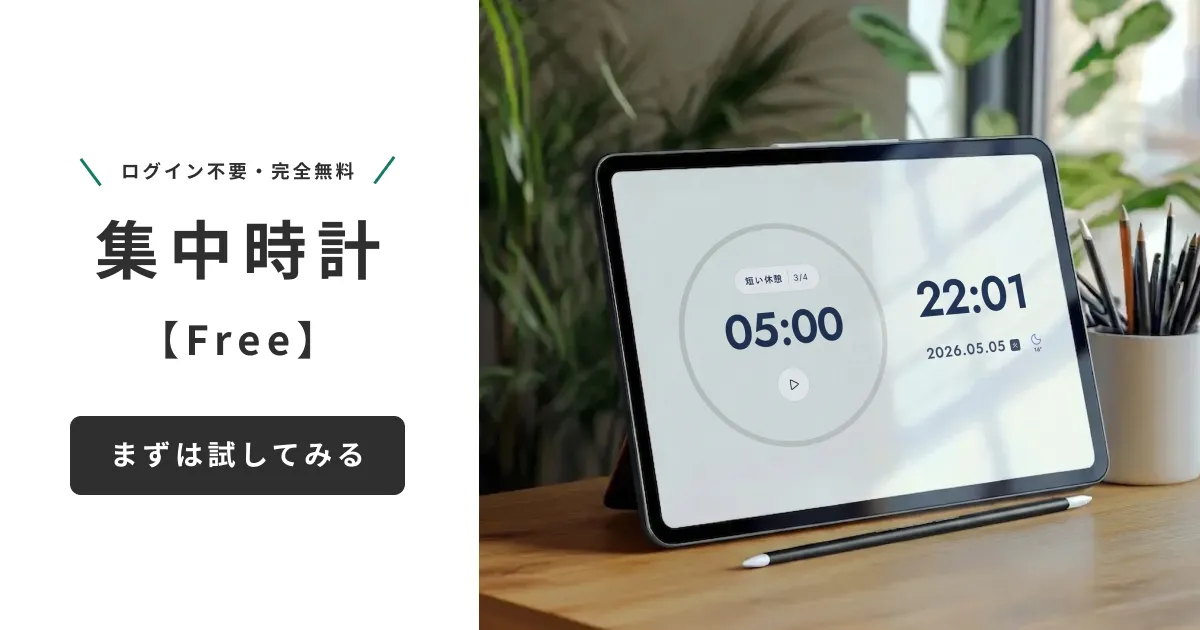
That said, some people will find "just a clock" a little dull. Our recommendation is a hybrid setup that layers a Pomodoro timer and a background image on top of a digital clock.
The Synergy of Time Awareness and Focus Cycles
Showing the current time large while running a 25-minute focus / 5-minute break Pomodoro lets you see "the current time" and "minutes left to focus" simultaneously. Deadline awareness and the focus cycle work in tandem, making it easier to drop into a deeper state than a clock alone can produce. The hidden bonus: the moment a Pomodoro switches becomes a natural cue to pour a coffee or stretch, which helps regulate your body rhythm too.
Build "Your Own Cafe" with Background Images
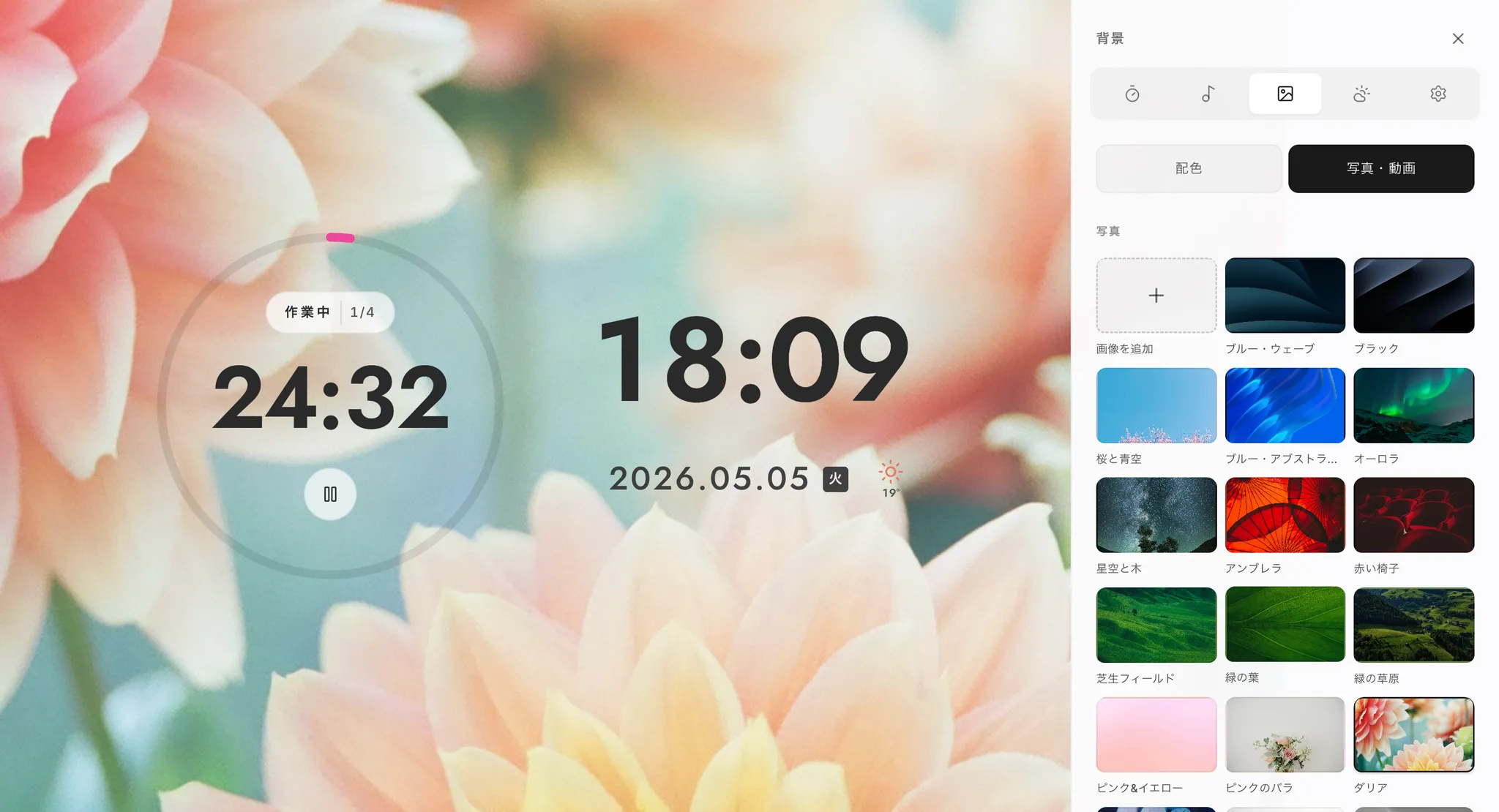
A Scandinavian window, nighttime Tokyo, a misty jungle, a cosmic nebula—a single background image can turn your second monitor into a window onto somewhere else. The strength of this hybrid is being able to swap scenes by mood or phase: a minimal gradient when you need to focus, a nature scene when you want to unwind. Unlike a fixed desktop clock, the view shifts a little every day, so you can keep using it for the long haul without getting bored.
How to Go Full Screen on Windows and Mac
Setting up a full-screen browser clock is surprisingly simple. No dedicated app to install—just use your browser's built-in full-screen feature.
Going Full Screen on Windows
- Open Chrome, Edge, Firefox, or another browser on the second monitor
- Visit a full-screen-friendly web clock such as Focus Clock
- Press the F11 key on your keyboard (the browser switches to full-screen mode)
- Move the mouse cursor off the screen (back to the main monitor on a laptop)
- Once the second monitor is fully covered by the clock, you're done
If F11 doesn't work on your laptop, try pressing it together with the Fn key. If the taskbar refuses to disappear, right-click the taskbar and turn on "Automatically hide the taskbar" for a more immersive look. For more Windows-only tricks — pinning a clock or timer always on top with PowerToys, installing it as a PWA, or a one-click desktop shortcut — see our full guide to always-on desktop clocks on Windows.
Going Full Screen on Mac
- Open Safari, Chrome, Arc, or another browser on the second monitor
- Visit a full-screen-friendly web clock
- Press Control + Command + F to go full screen (or use the browser's "View" menu → "Enter Full Screen")
- In Mission Control, confirm the browser is assigned to the second monitor's Space
- Move the cursor back to the main monitor and you're set
On Mac, open System Settings → "Desktop & Dock" and turn on "Displays have separate Spaces". With this on, you can keep the clock on your second monitor while working freely with windows on the main monitor. It's a small setting, but practically essential for any dual-display clock setup.
OLED Burn-In Defenses and Tips for a Setup That Pops
The biggest worry when "clock-ifying" a second monitor is burn-in. By their nature, OLED displays risk leaving a ghost of an image when the same content sits in the same spot for too long. With LCDs, this is essentially a non-issue, but more people now use portable OLED displays as a second monitor, so it's worth knowing the basics. While we're at it, you'll want a setup that doubles as part of your interior design.
Auto-Shuffle Backgrounds and Color Schemes on a Schedule
Not letting the same background and the same color scheme stay on screen forever is the single most effective defense. Manual swapping is unrealistic, so the best option is a clock app that auto-shuffles backgrounds every hour. The color change alone reduces burn-in risk significantly. Gradient backgrounds also avoid hammering the same pixels, and switching to a darker palette at night to lower brightness helps too. When you step away for an extended period, configure macOS Hot Corners or Windows power options to automatically turn off the display.
Match Color, Bezel, and Lighting to Your Desk
- Wood-grain desk: warm-tone backgrounds (orange, beige, brown). Minimalist black-and-white desk: monochrome or navy. Tuning the palette lets the second monitor blend into your interior
- Float the second monitor on a monitor arm and choose a thin-bezel model—it starts to look more like a "window," and the aesthetic level jumps
- Bias lighting (an LED strip on the back of the monitor) softens contrast and reduces eye strain
- Match desk-light color temperature to your monitor (around 5000K for daylight). At night, pair a darker background with a warm-toned font for a relaxing study-room feel
And one detail people overlook: hide your under-desk cables thoroughly. The top half (your monitors) can look gorgeous, but a tangle of cables underneath ruins it. Tame the under-desk side too with a cable tray or magnetic clips. "Clock-ifying" a second monitor often becomes the trigger that lifts your sense of order across the entire desk.
Why Mihata's "Focus Clock" Fits This Hybrid Setup
Mihata's Focus Clock is the easiest way to put together the "full-screen clock + Pomodoro + background" hybrid we've described. It's completely free, runs in your browser with no installation, and is an ideal entry point into using a second monitor as a clock.
Four Features That Make Second-Monitor Clocking Click
- 12 stylish backgrounds plus your own image upload: Beyond presets, you can upload your favorite photos. Put a travel shot on your second monitor and the desk becomes a special place
- Hourly auto-shuffle of backgrounds: a built-in OLED defense, and the visual change works as a small mental refresh
- Built-in Pomodoro: cycle through focus sessions on the same screen as the clock—no need to open another app
- Built-in BGM: ambient sounds and work music live inside the app, letting one screen handle focus and immersion together
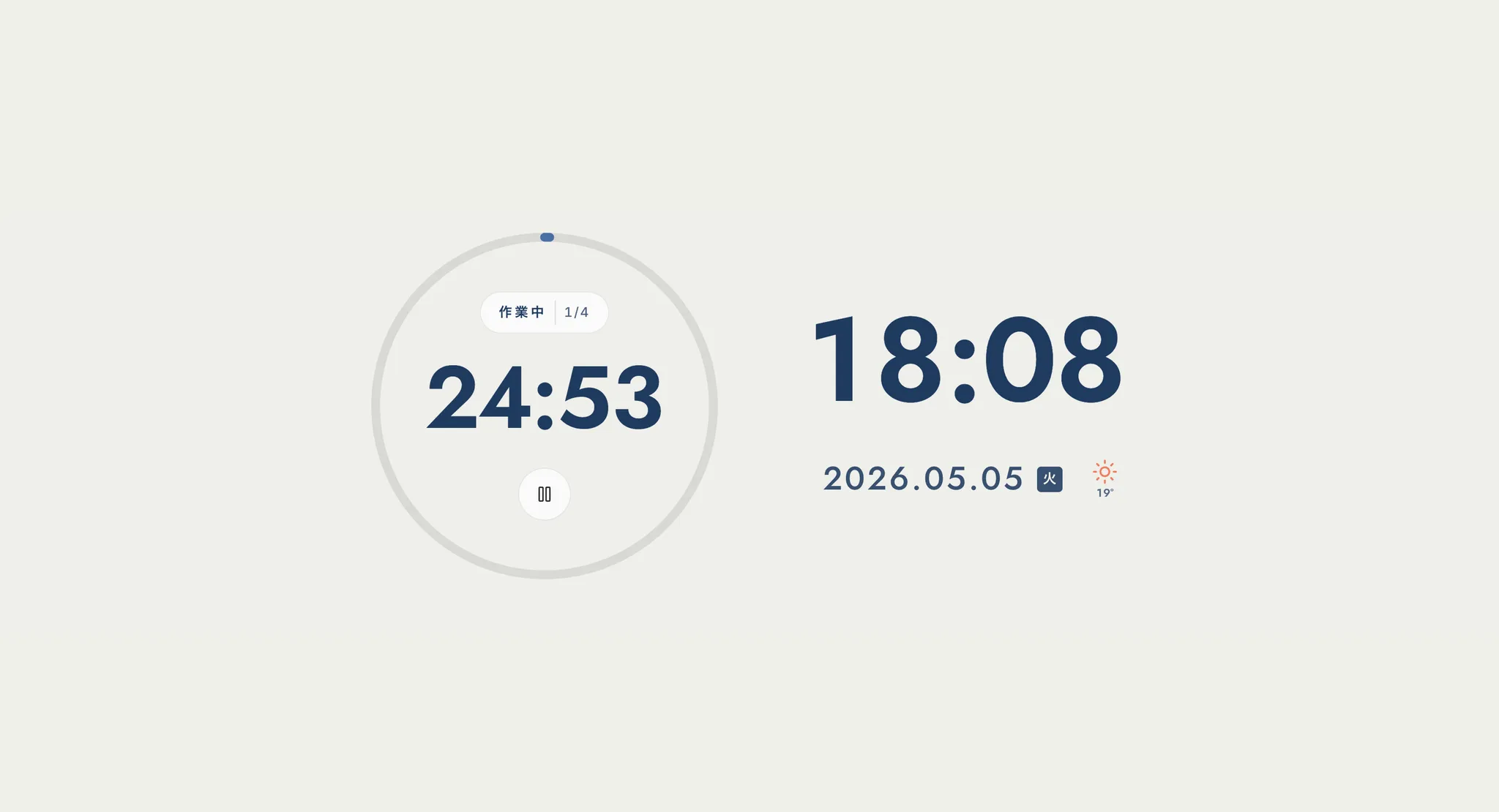
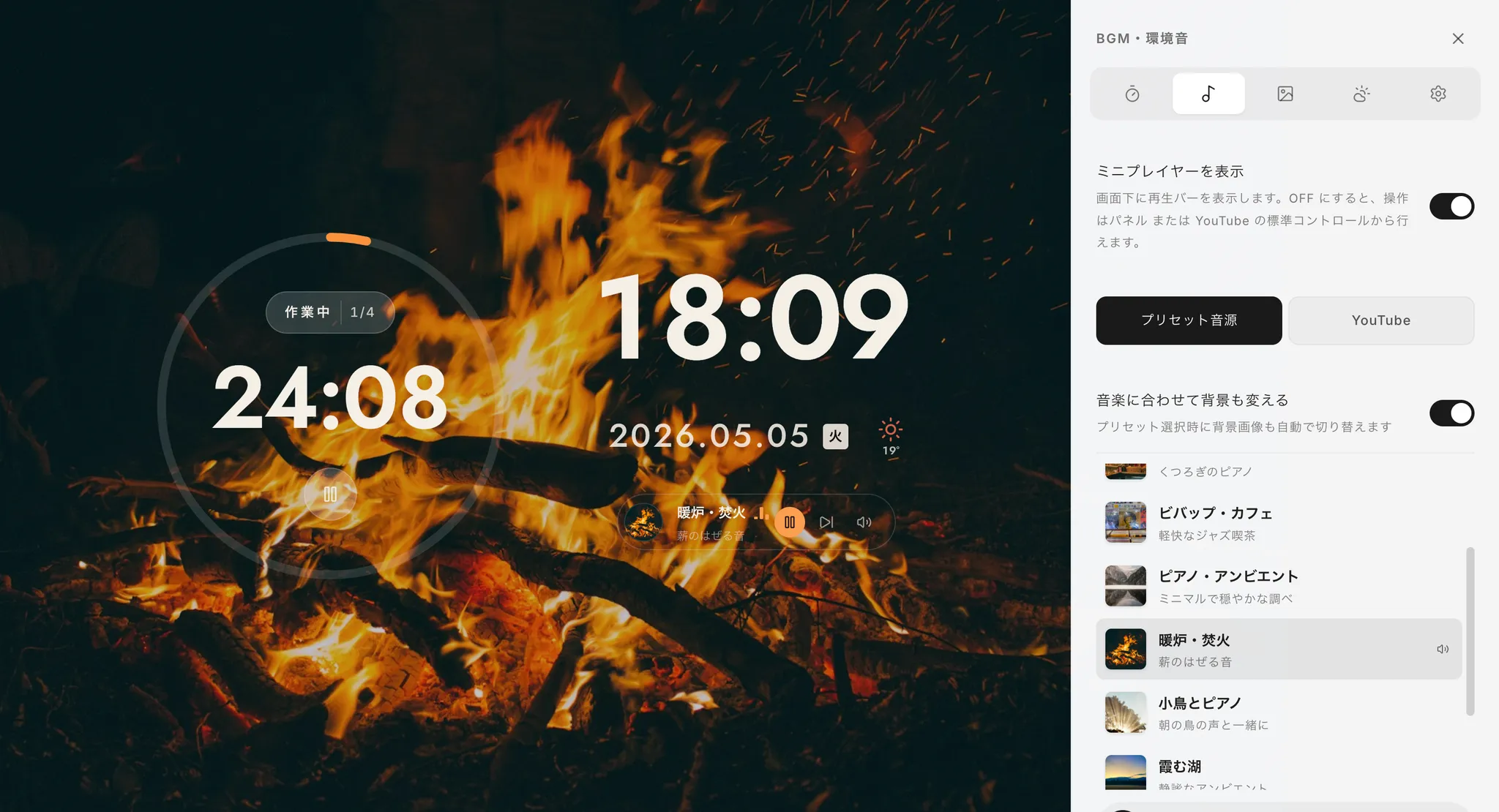
A Setup Walkthrough Using Mihata Focus Clock
- On the second monitor's browser, open https://mihata.jp/en/clock
- Pick a background, font, and color scheme from the presets (or upload your own image)
- Turn on Pomodoro and BGM as needed
- Go full screen with Control + Command + F on Mac, F11 on Windows
- Move the cursor back to the main monitor and start working
That's all it takes for your PC's second monitor to become "a focus tool and an interior accent." Compared with a small desktop clock or a widget on a sidebar, a full-screen experience that strips away every other piece of information is in a different league. Behind the search "PC desk clock aesthetic" lies a desire to make a second monitor into a meaningful space and to make a desk feel better. As we've seen, the answer comes down to the hybrid of full-screen clock + Pomodoro + background image. Press F11 on Windows or Control+Command+F on Mac to go full screen. OLED users should rely on auto-shuffle and small position shifts as a burn-in defense; line up colors, bezels, and lighting, and your desk transforms into a cafe in no time. Why not turn your second monitor into the ultimate focus clock, starting today?
To hear why we built Focus Clock and the philosophy behind each feature, in the developer's own words, please also read our development story.
The same Focus Clock also includes a standalone online timer and stopwatch, so once the second monitor is set up you can run a 45-minute timer for deep-work blocks without switching tabs.